Saved reports in MobileBiz Pro can be filtered, sorted, and configured with the exact columns you need — then saved so you can run the same report again in seconds.
What You'll Need
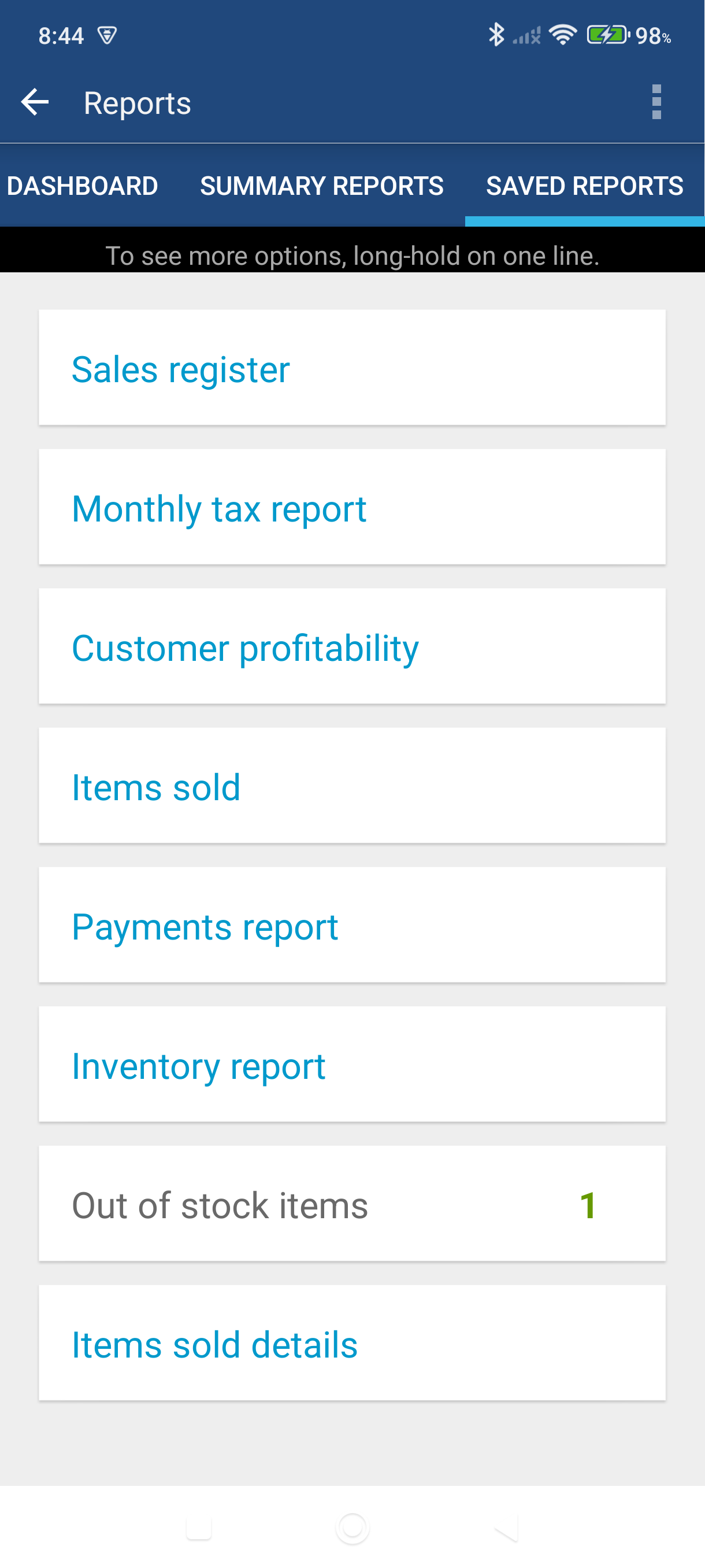
Before you start: Open the side menu and tap Saved reports under Reports. You'll see the built-in report templates listed there.
Steps
Filter a Report
-
Tap any report on the Saved Reports tab to open it.
-
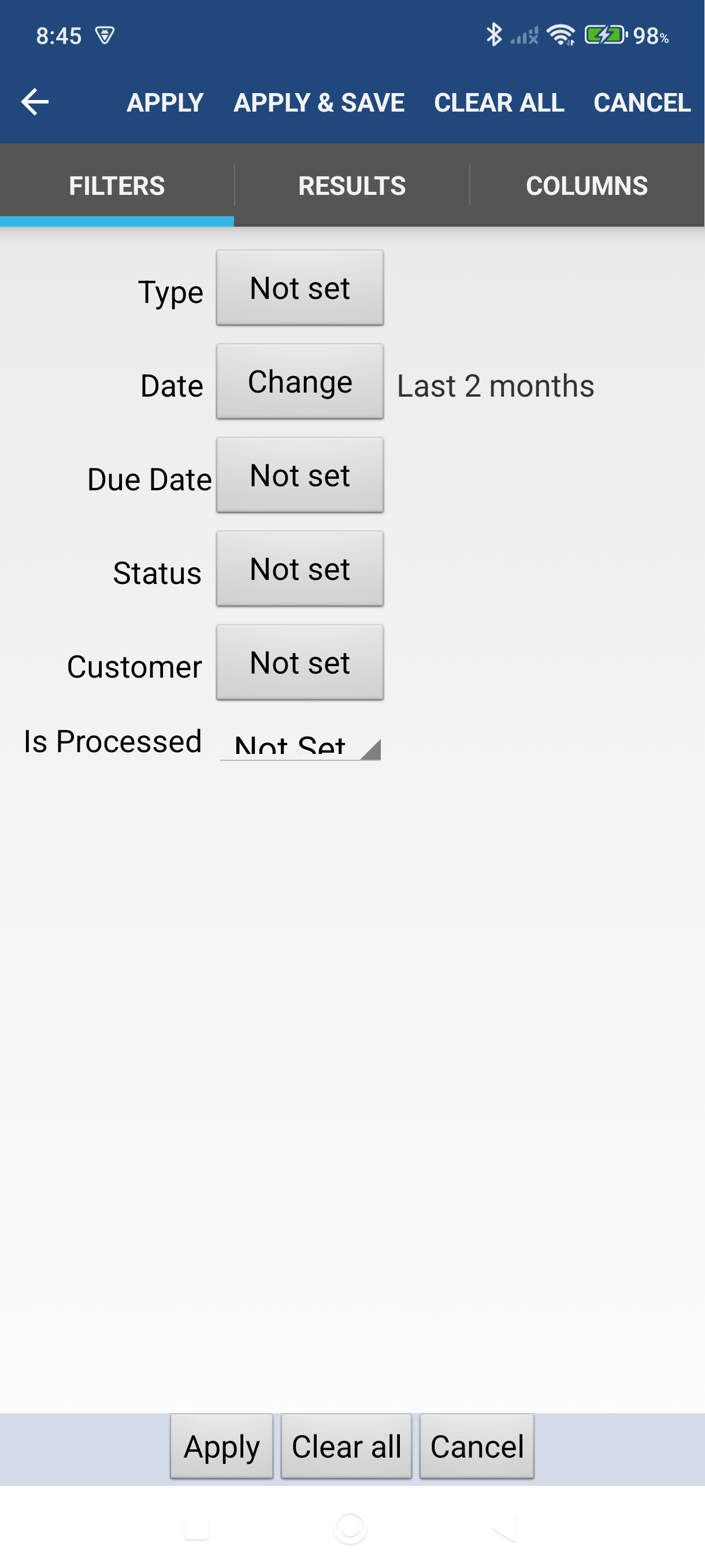
Tap the Filter icon in the action bar (top right). This opens the filter screen.
-
Set your filters — options vary by report type but typically include:
- Date range — set a start and end date
- Transaction types — include or exclude specific types
- Status — filter by paid, unpaid, void, etc.
- Sort order — choose which column to sort by and the direction
- Visible columns — check or uncheck columns to show or hide them
-
Tap Apply — the report refreshes with your filter settings applied.
Save a Custom Report
-
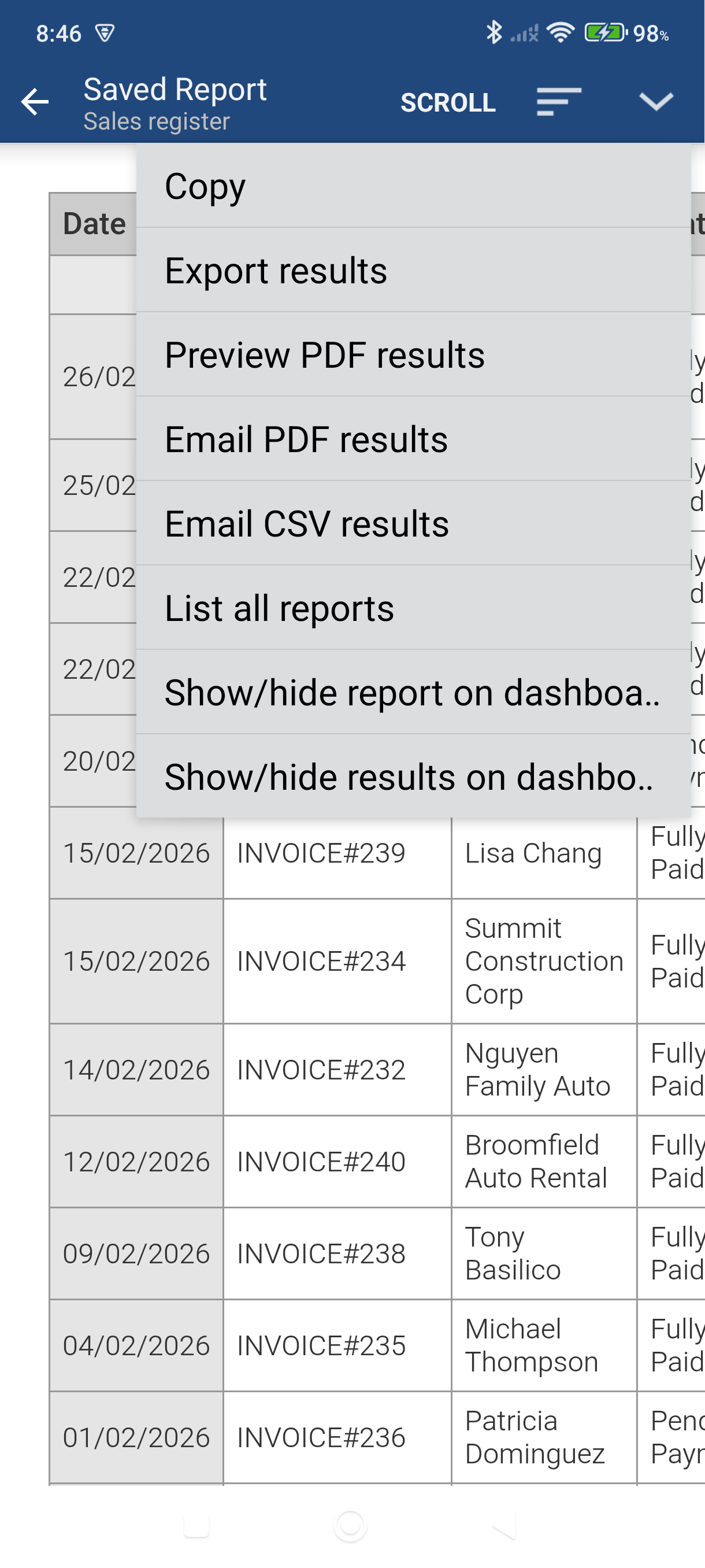
Tap the More menu (the expand icon in the action bar) and choose Copy. This creates a new report based on the current one.
-
Enter a name for your custom report on the Save Report As screen.
-
Optional: check "Show on Dashboard" to display this report's result count on your app home screen.
-
Tap Save — your custom report now appears on the Saved Reports tab.
Update an Existing Custom Report
If you've already saved a custom report and want to tweak its filters:
- Open the report from the Saved Reports tab.
- Tap the Filter icon and adjust your settings.
- Tap the Save icon in the action bar to save the changes back to the same report.
Good to Know
- Built-in templates (shown in blue) cannot be deleted — always copy them first before customizing.
- Pin to Dashboard — long-press any saved report and choose Show on Dashboard to surface its result count on your home screen.
- Date range for Summary Reports (Sales By Month, Sales By Customer, etc.) is set via the Year menu in the action bar — not the filter screen.
- PDF export requires internet. If you're offline, use the Export results option (CSV) from the More menu instead.
- All saved reports belong to the currently active company — switch companies before running reports if you manage more than one.
Still stuck? Contact Support for help.