You can control how currency values and dates appear across the app and on your printed documents through Company Settings.
Steps
-
Open Settings and tap Currency & date formats under the Company section.

-
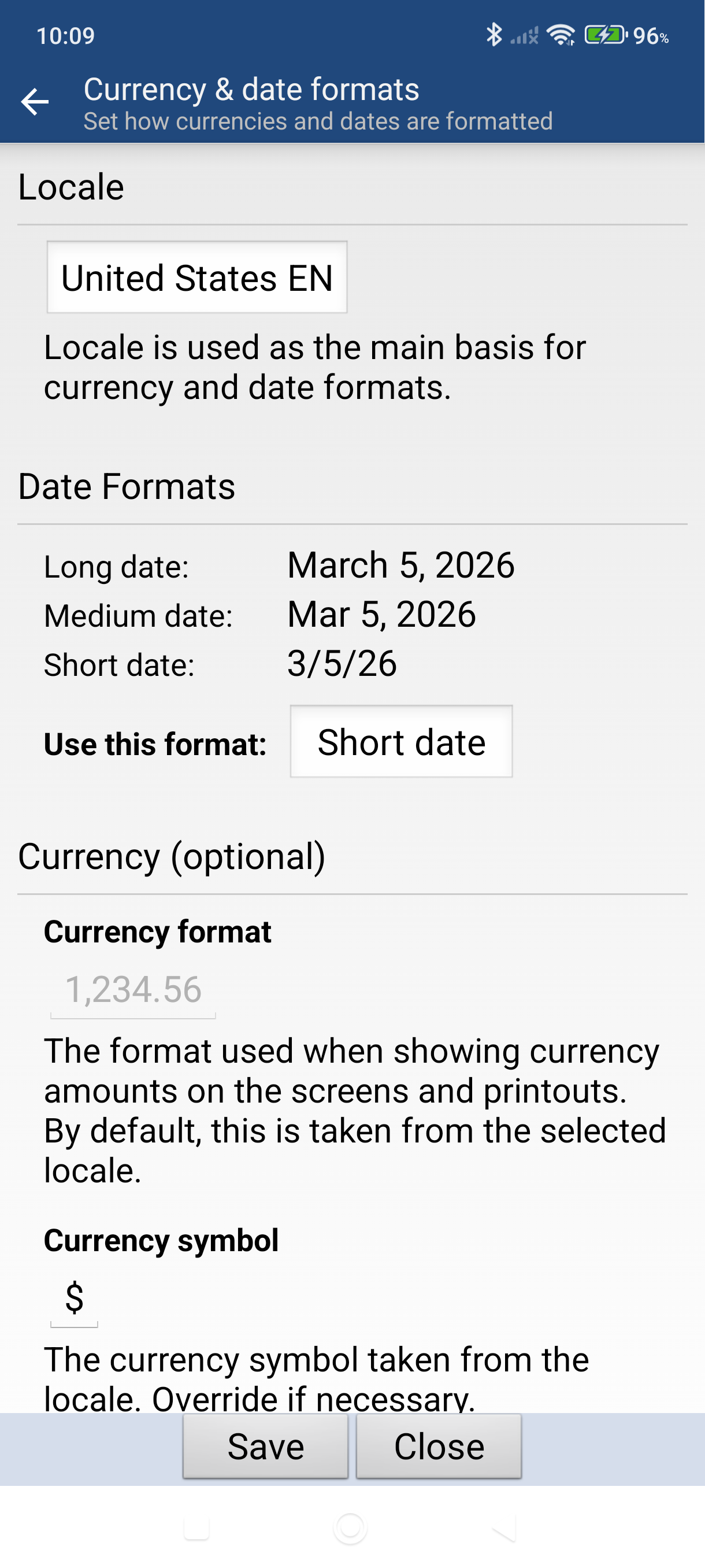
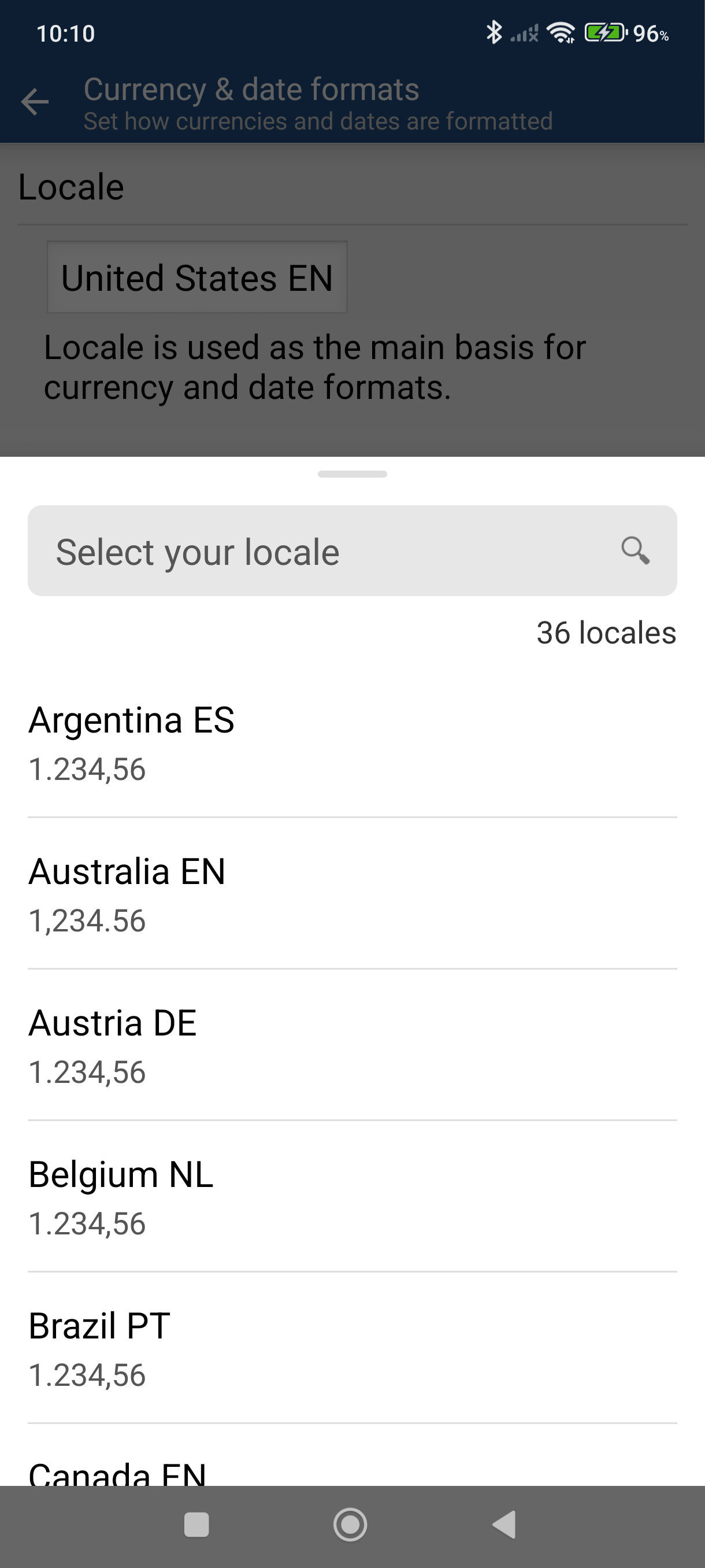
Select your Locale — this is the main basis for currency and date formats. Tap the Locale field to open a searchable list of 36 locales. Each entry shows the country, language, and number format.
-
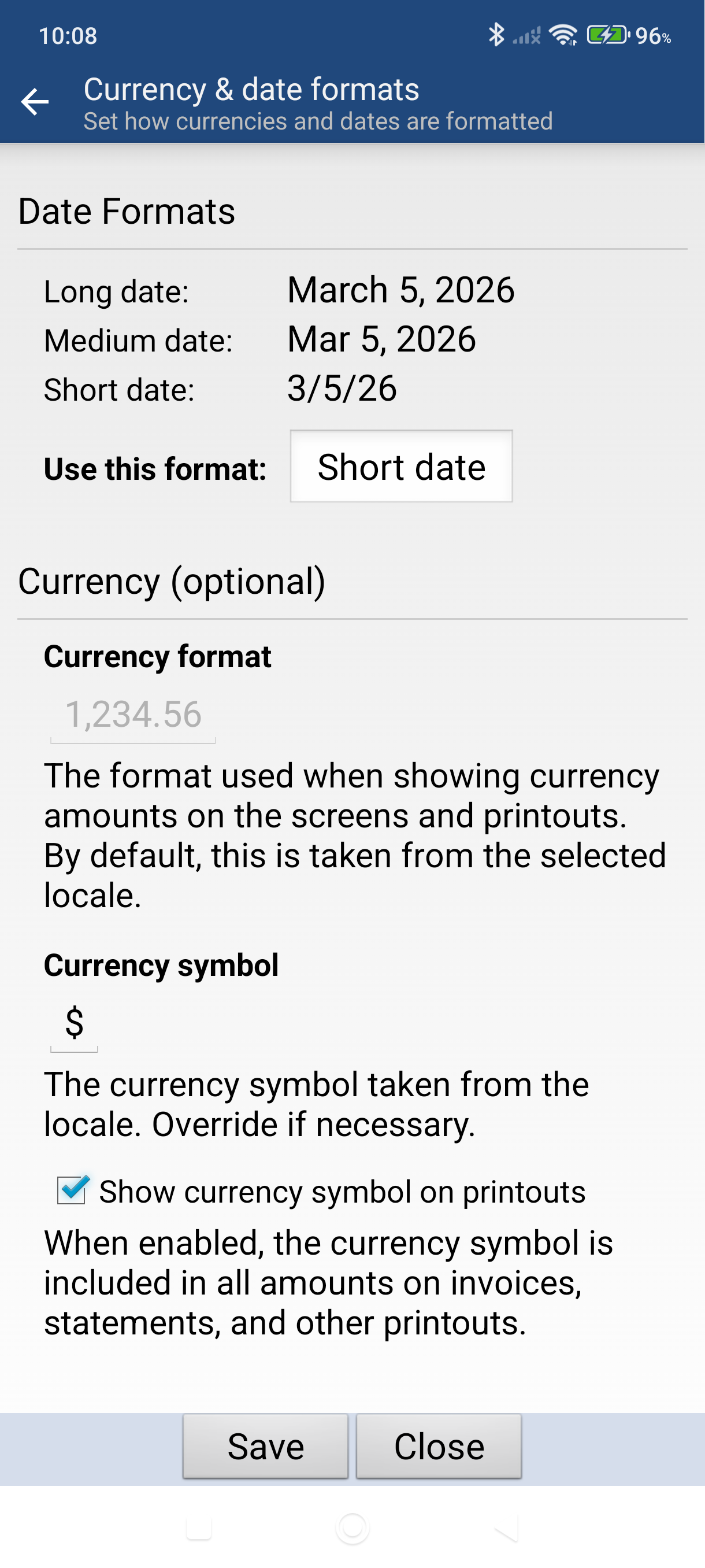
Review the date and currency settings — selecting a locale automatically populates the date formats (Long, Medium, Short) and the currency format and symbol for that region. You can override any of these individually if needed.
-
Check "Show currency symbol on printouts" if you want the currency symbol (e.g., $) included on all amounts on invoices, statements, and other printouts.
-
Tap Save — the new currency symbol and format apply everywhere immediately.
Good to Know
- Currency and date format settings are per company. If you manage multiple companies, switch to each one and set the format separately.
- If you want to show a currency code like "USD" next to amounts on printed PDFs (for example, "Subtotal USD"), you can rename the total labels. Open any invoice, tap Edit > Print Preview > Customize, then edit the labels in the Totals section.
- The date format set here is also used as the default on printouts. You can override the print date format independently under Settings > Printing > Override labels & dates.
Still stuck? Contact Support for help.