If you need to recover lost data or move to a new phone, restoring a backup brings everything back — invoices, customers, items, and settings — in just a few steps.
What You'll Need
Before you start: Know where your backup is stored: Dropbox, Google Drive, or your device's local storage. If you're restoring to a new phone, install MobileBiz Pro first. Restoring replaces all current data — if you have recent data you want to keep, back it up before proceeding.
Steps
-
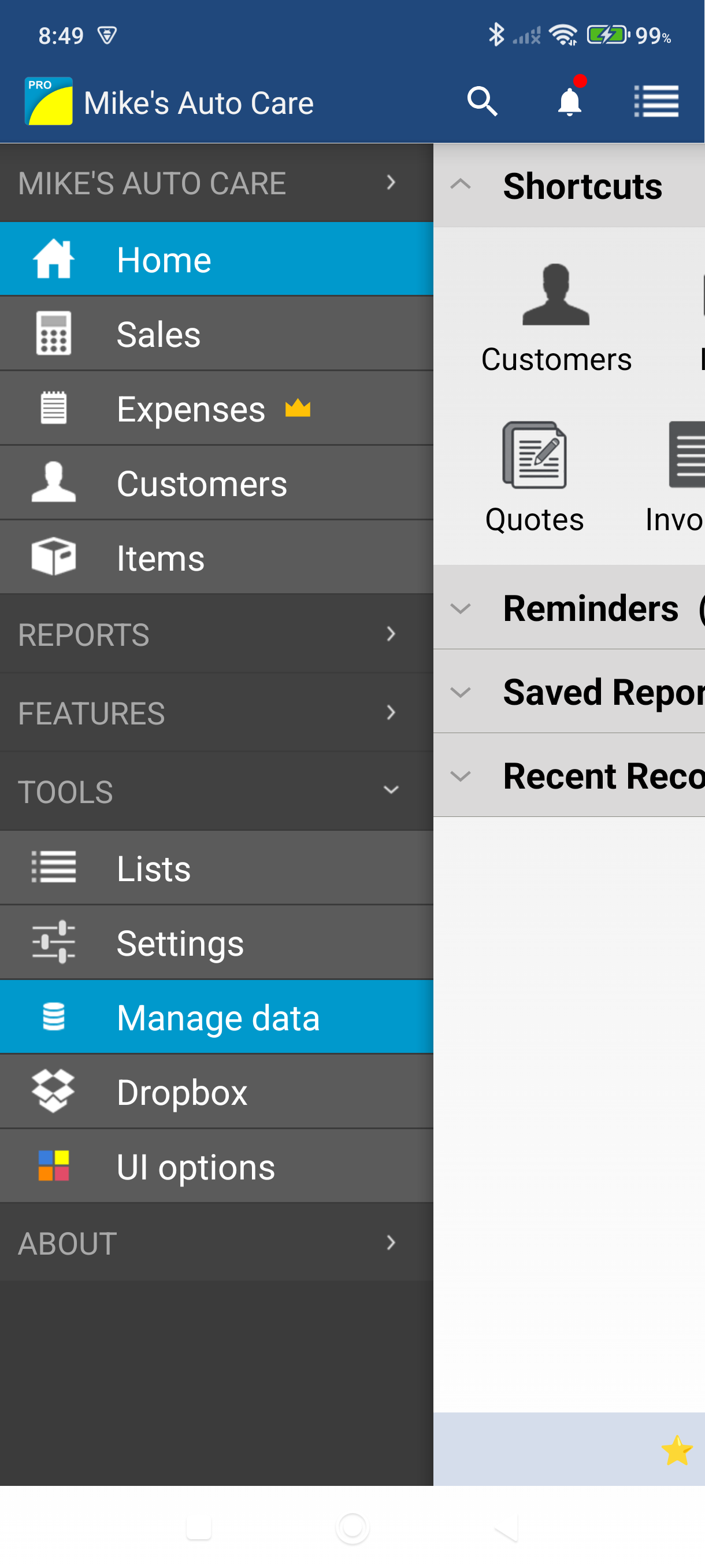
Open the side menu and tap Settings, then tap Data & backup.
-
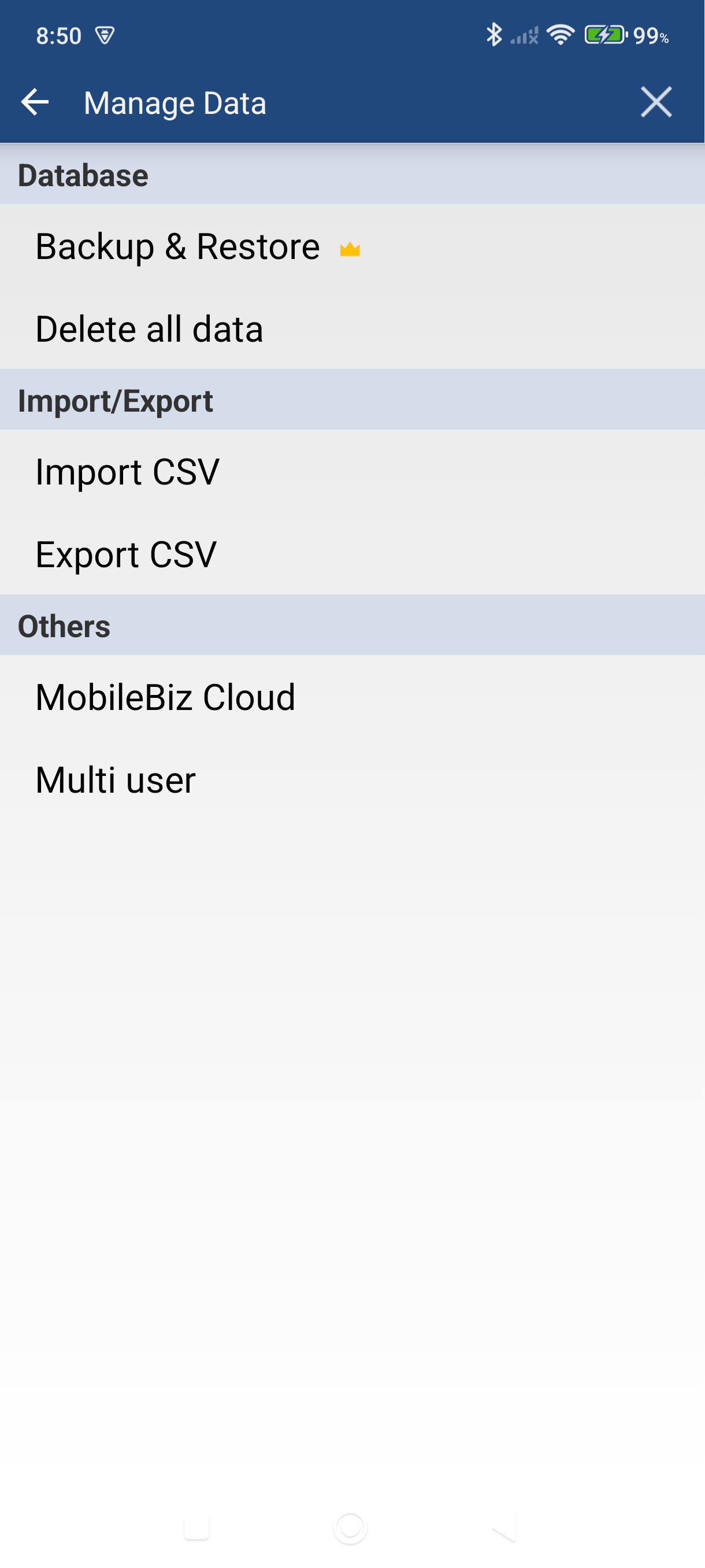
Tap Backup & restore.
-
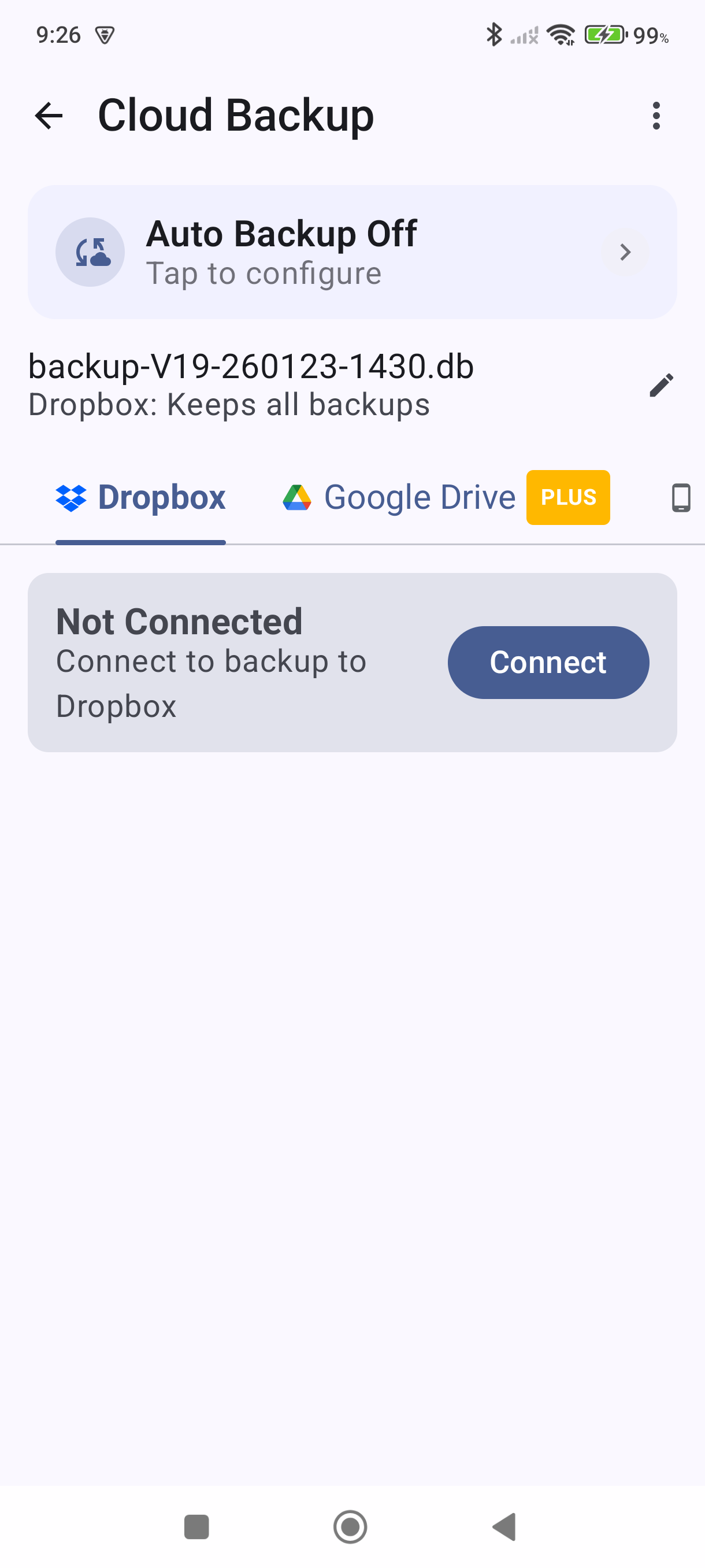
Select the tab matching where your backup is stored — Dropbox, Google Drive, or Device.
-
Connect your account if prompted. For Dropbox, tap to link your account. For Google Drive, sign in with your Google account. Device backups don't require sign-in.
-
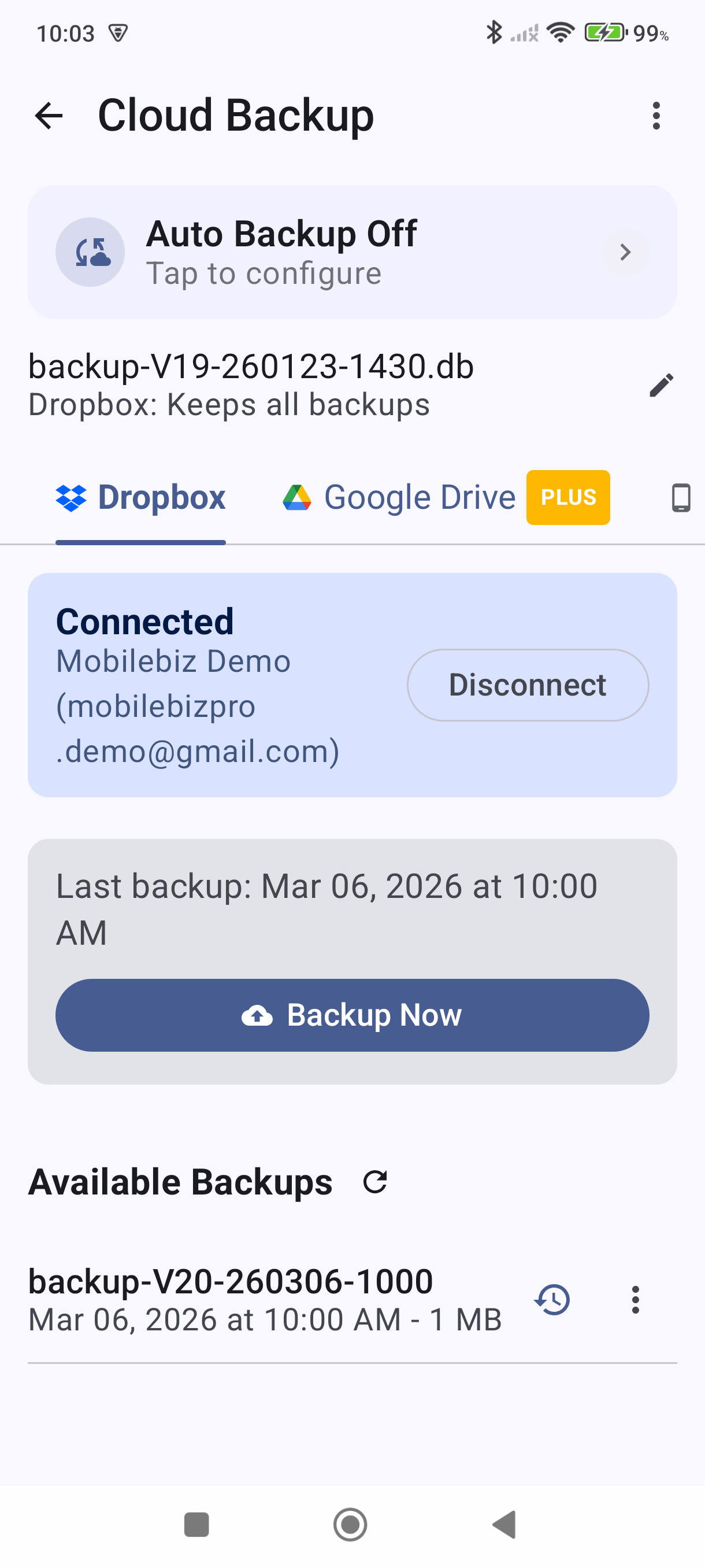
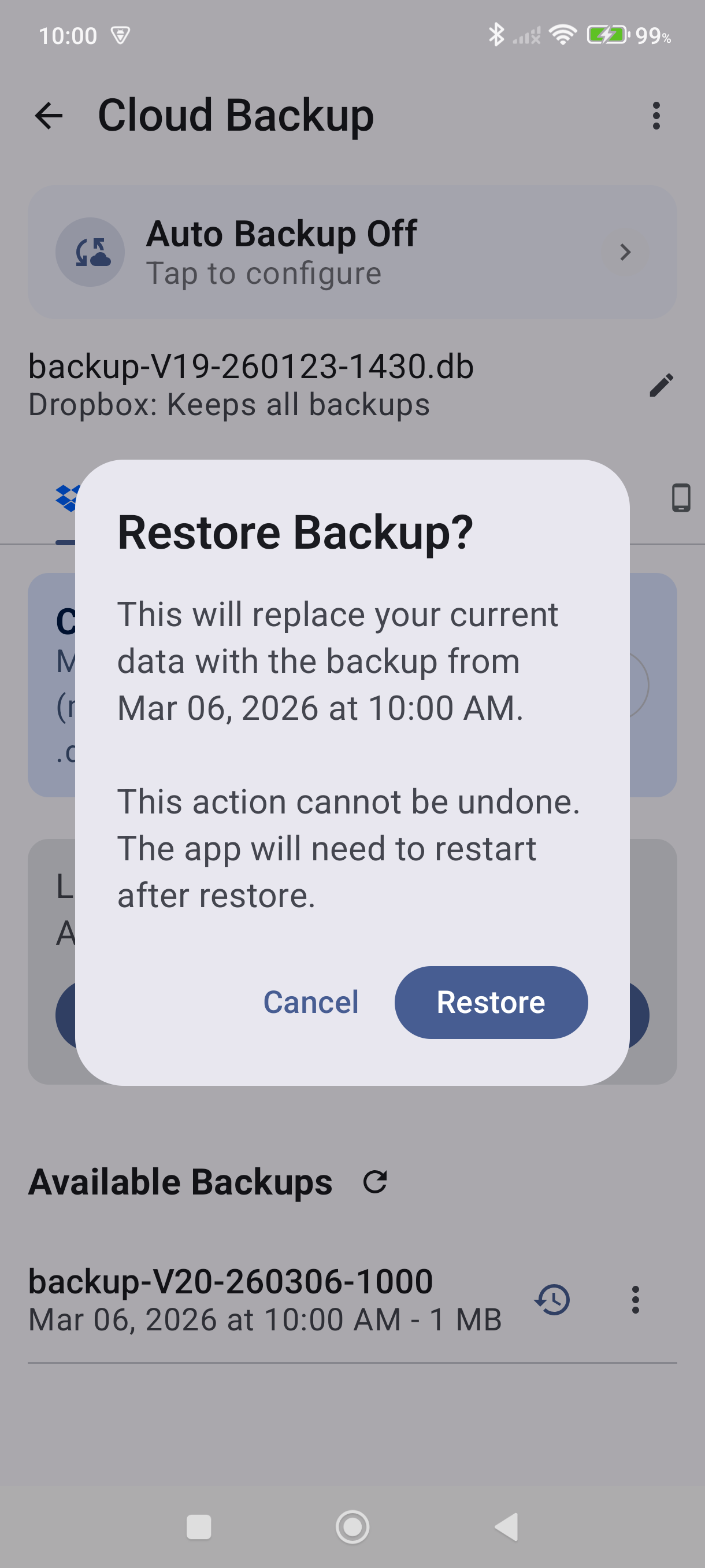
Browse the list of backup files and tap the one you want to restore.
-
Confirm the restore. The app replaces your current database with the selected backup and restarts.
Good to Know
- Backups include all companies, all invoices, customers, items, settings, and templates in your database.
- The most recent backup appears at the top of the list — it's usually the one you want.
- If you set a backup name prefix, your files will be labeled with that prefix to make them easier to identify.
- Don't see your backup file? Make sure you're on the right tab (Dropbox vs. Device) and that your Dropbox account is connected.
- After restoring, check a few invoices and your customer list to confirm everything came back correctly.
- Backups do not include photos stored in MobileBiz Cloud — those are stored separately and remain available after a restore.
- Creating a Google Drive backup requires a Plus subscription (free users get one free backup). Restoring from an existing Google Drive backup works for all users.
Still stuck? Contact Support for help.