When a customer accepts your quote, convert it to an invoice instantly. All line items, the customer, addresses, and notes carry over — no re-entry needed.
Steps
-
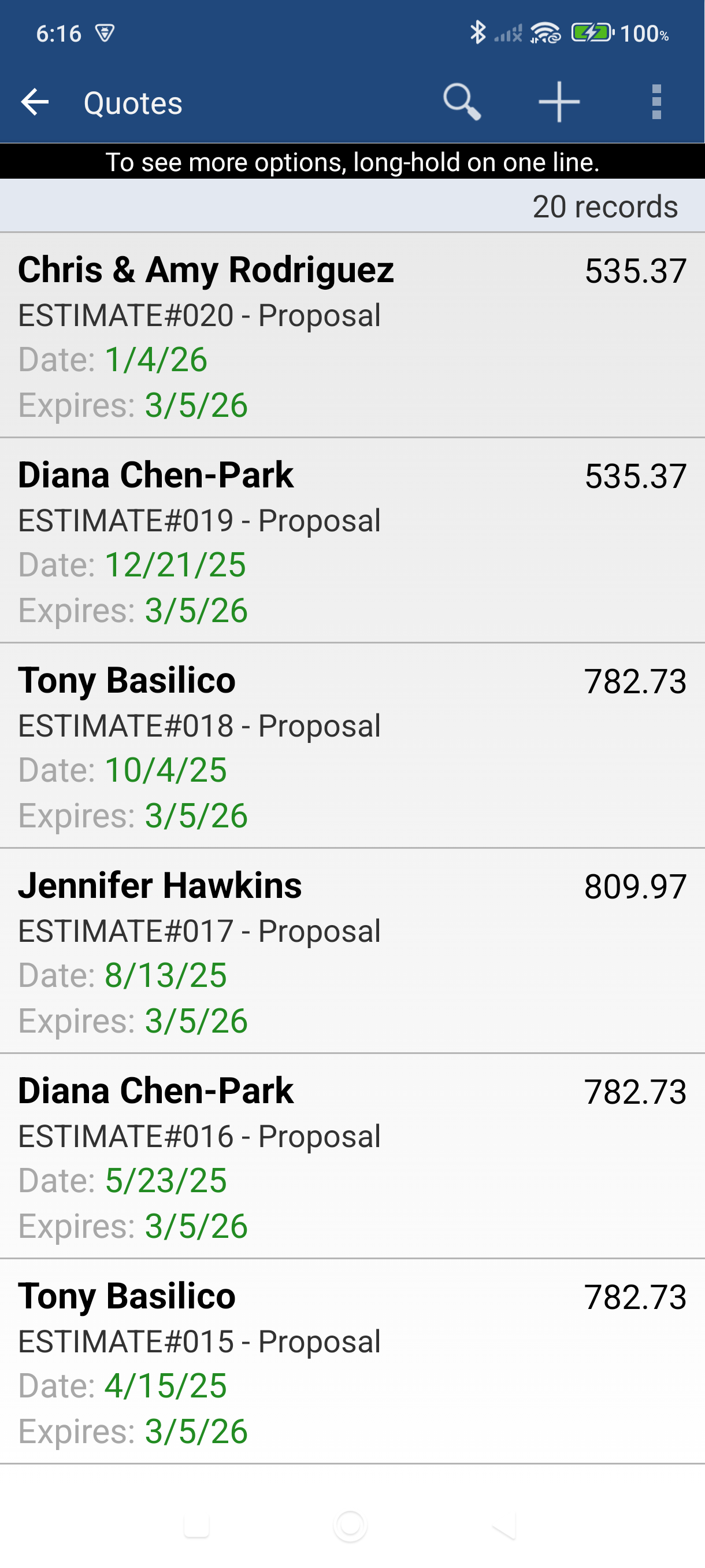
Open the quote you want to convert. Tap it from the Quotes list (navigation menu > Sales, filter by Quotes) or from your Recent Records on the Dashboard.
-
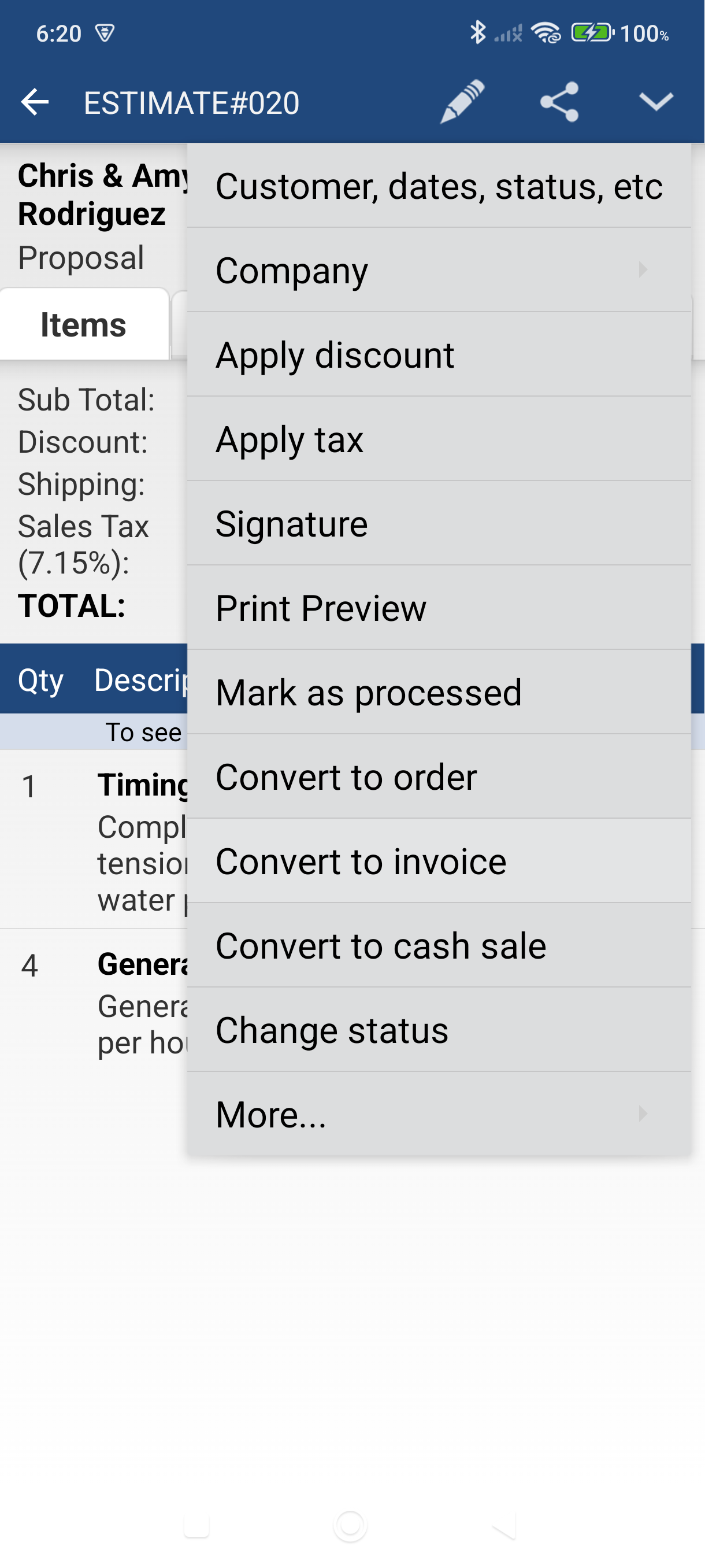
Tap the Edit icon (pencil) in the action bar — the Edit menu appears.
-
Tap Convert to invoice — the app creates a new invoice immediately with all the data from the quote.
-
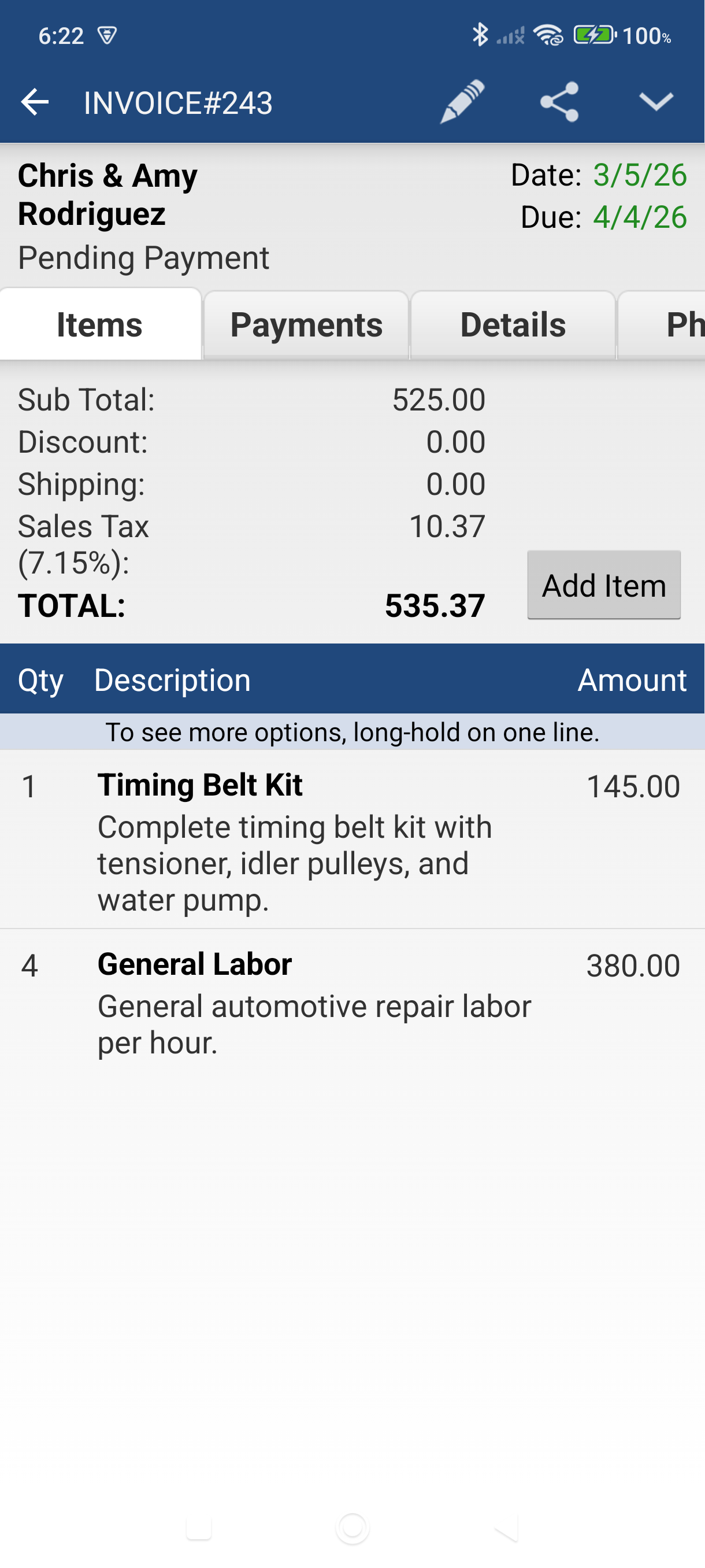
Review the new invoice — the app navigates to it automatically. The customer, line items, dates, and addresses are all copied over. A new invoice number is assigned.
-
Adjust the Due Date if needed, then the invoice is ready to send. Tap the Share icon > Send as email to email it to your customer.
Good to Know
- The original quote is preserved in your records — it won't be deleted or changed.
- Both documents stay linked: open the invoice and tap More menu > Go to created from to jump back to the quote, or open the quote and tap More menu > Converted to to reach the invoice.
- You can also convert a quote to a Sales Order (Edit > Convert to order) or a Cash Sale (Edit > Convert to cash sale) depending on your workflow.
- To convert from the list without opening the quote first, long-press the quote in the list and tap Convert to invoice from the context menu.
Still stuck? Contact Support for help.