By default, MobileBiz Pro stores your files (PDFs, backups, CSV exports) in a hidden app folder that isn't accessible from file manager apps. If you want to find your exported files, share them, or back them up manually, you need to set a visible storage folder.
Why Change This Setting?
When using default app storage, you won't be able to browse your invoices, backups, or exports using a file manager app like Files by Google. Setting a visible storage folder makes all your MobileBiz Pro files easy to find and share.
Steps
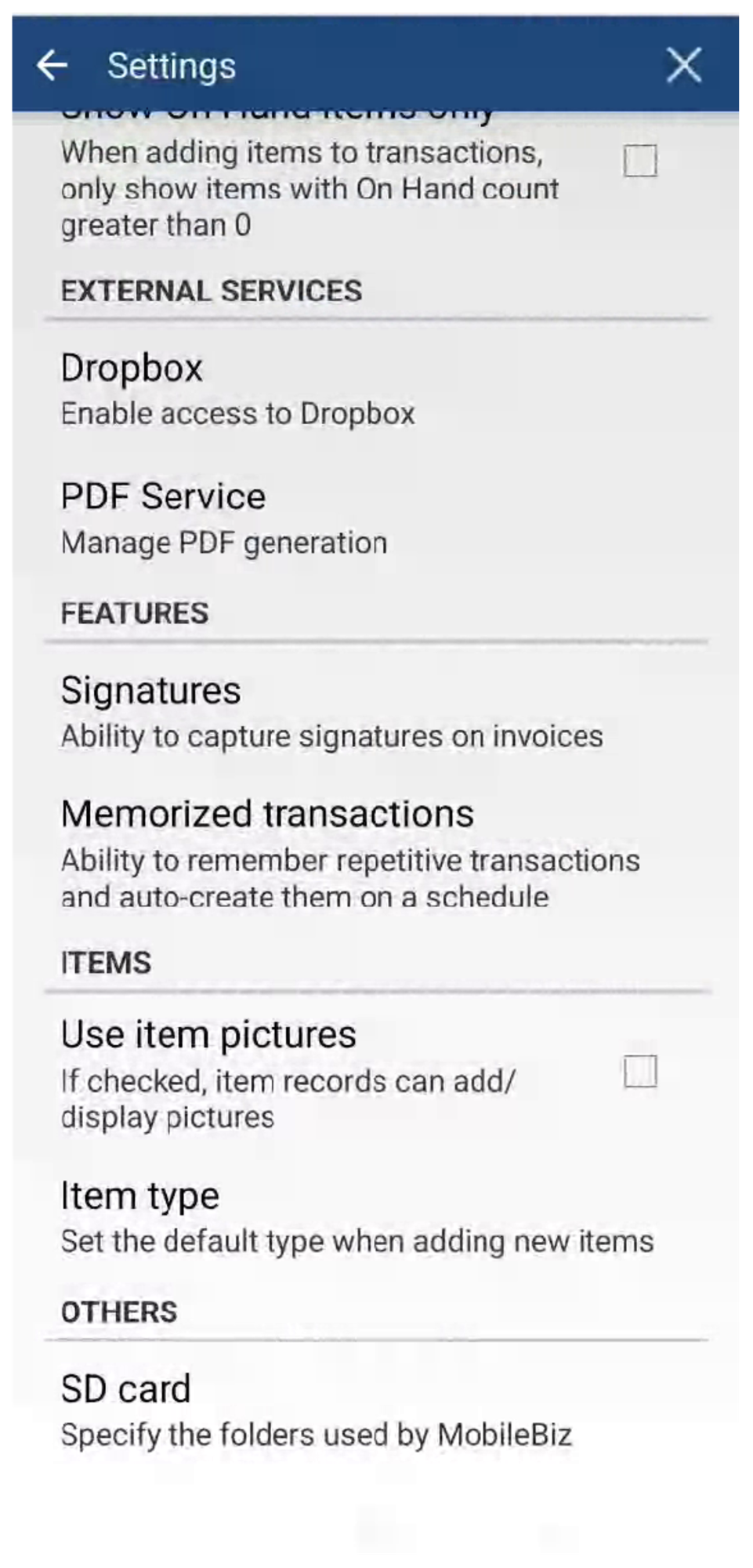
1. Open Settings and tap Storage folders
Open the side menu and tap Settings, then tap Data & backup > Storage folders.
2. Tap Storage folder
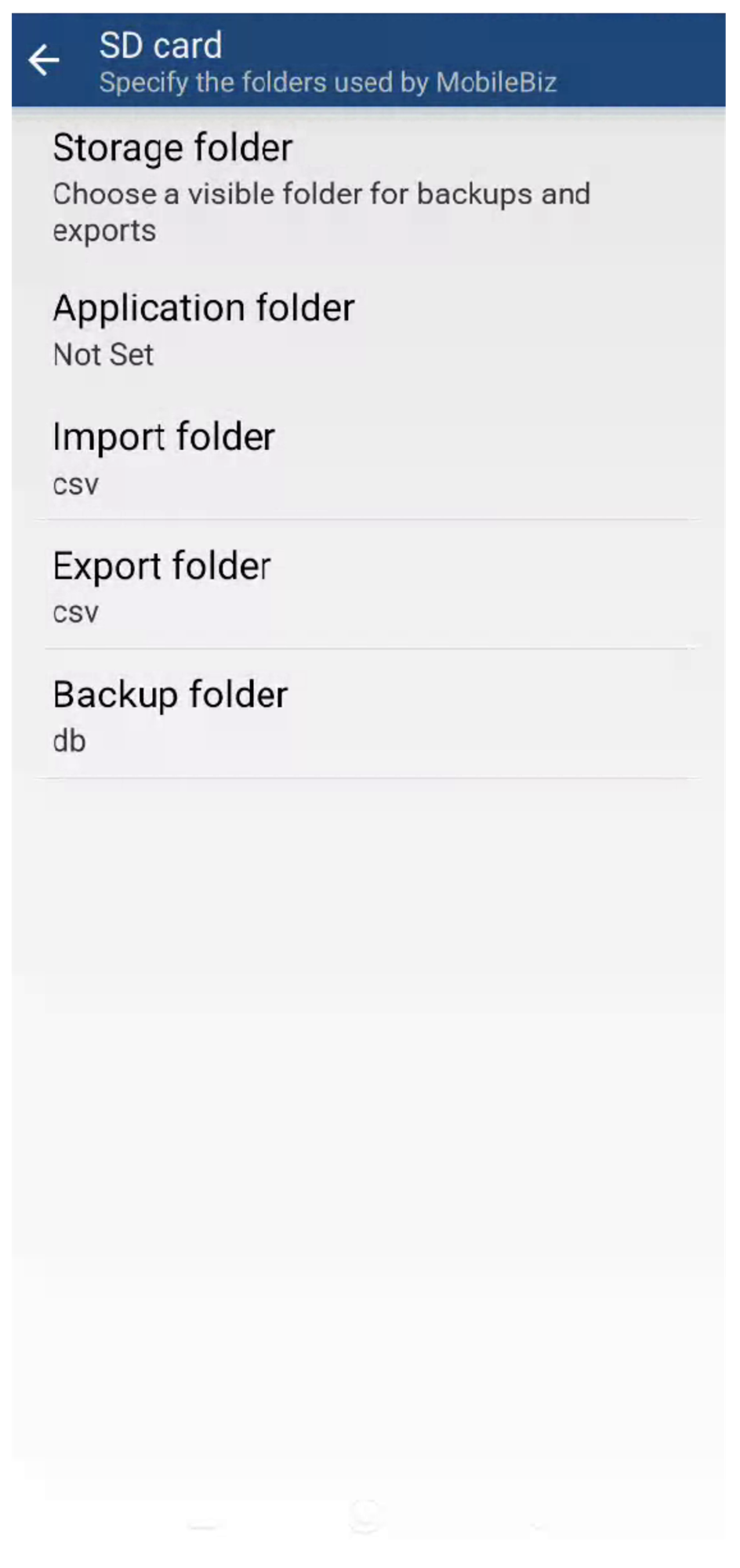
On the Storage folders screen, you'll see several folder settings. Tap Storage folder at the top.
3. Tap Choose Folder
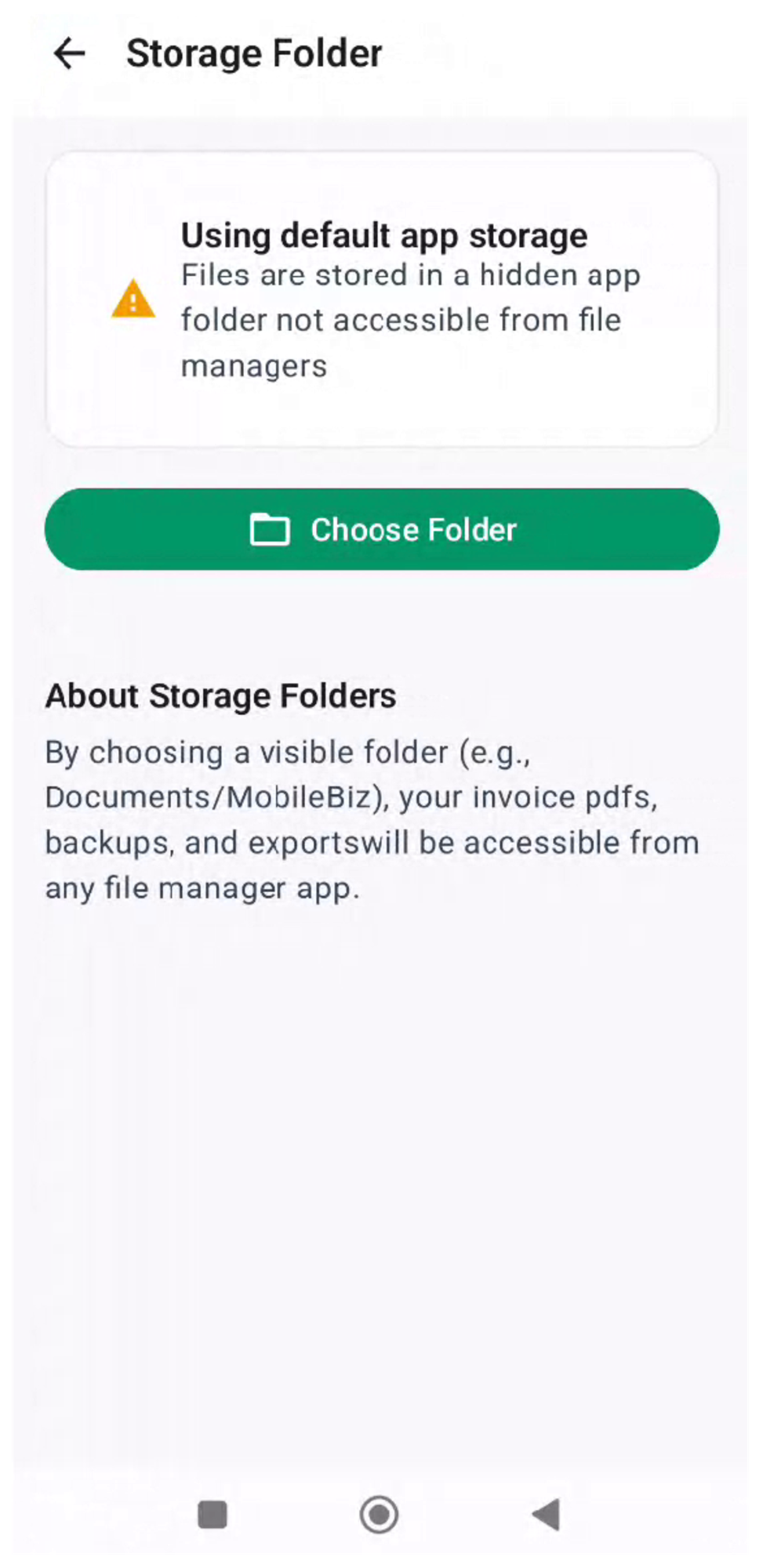
You'll see a warning: "Using default app storage — Files are stored in a hidden app folder not accessible from file managers." Tap the Choose Folder button to pick a visible location.
4. Pick a folder on your device
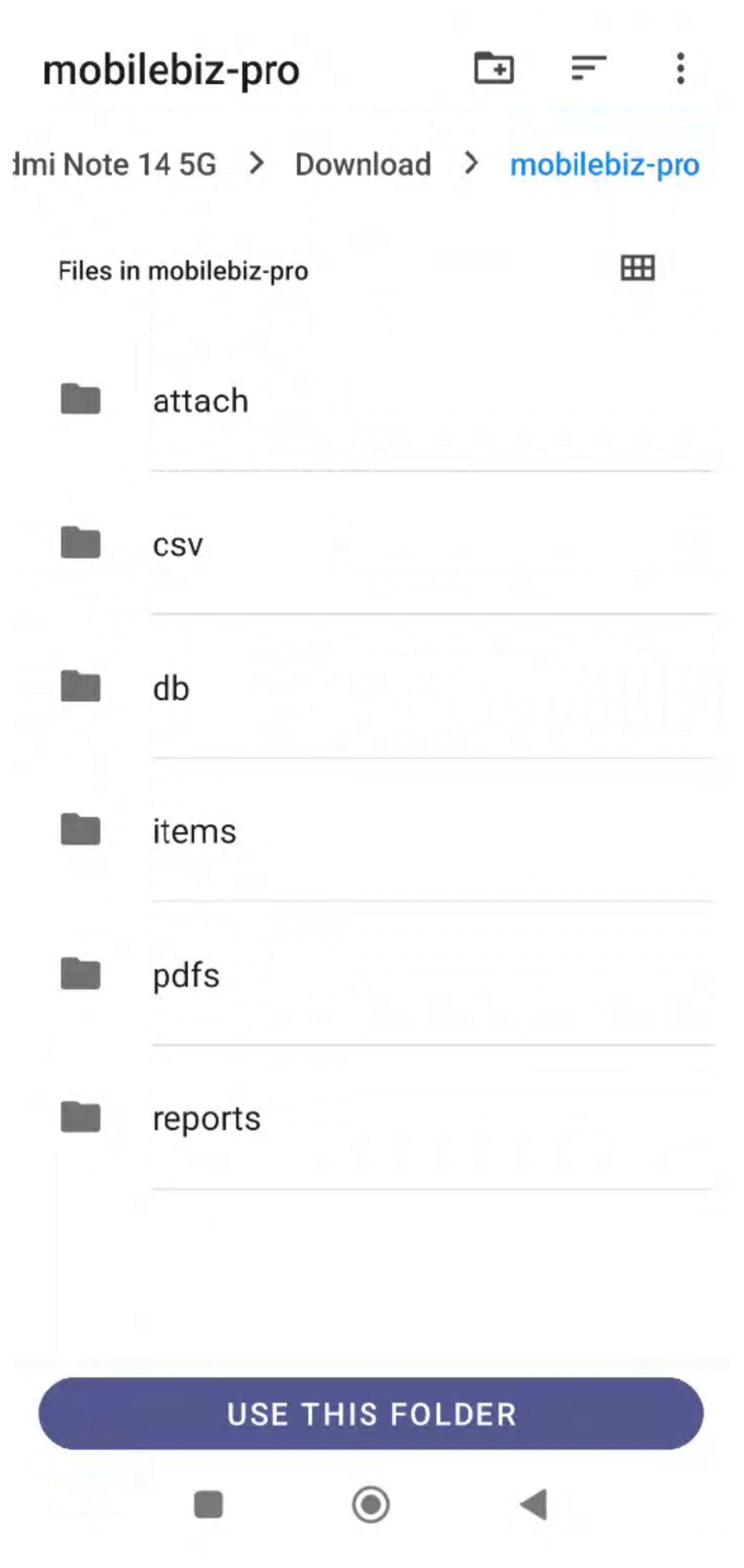
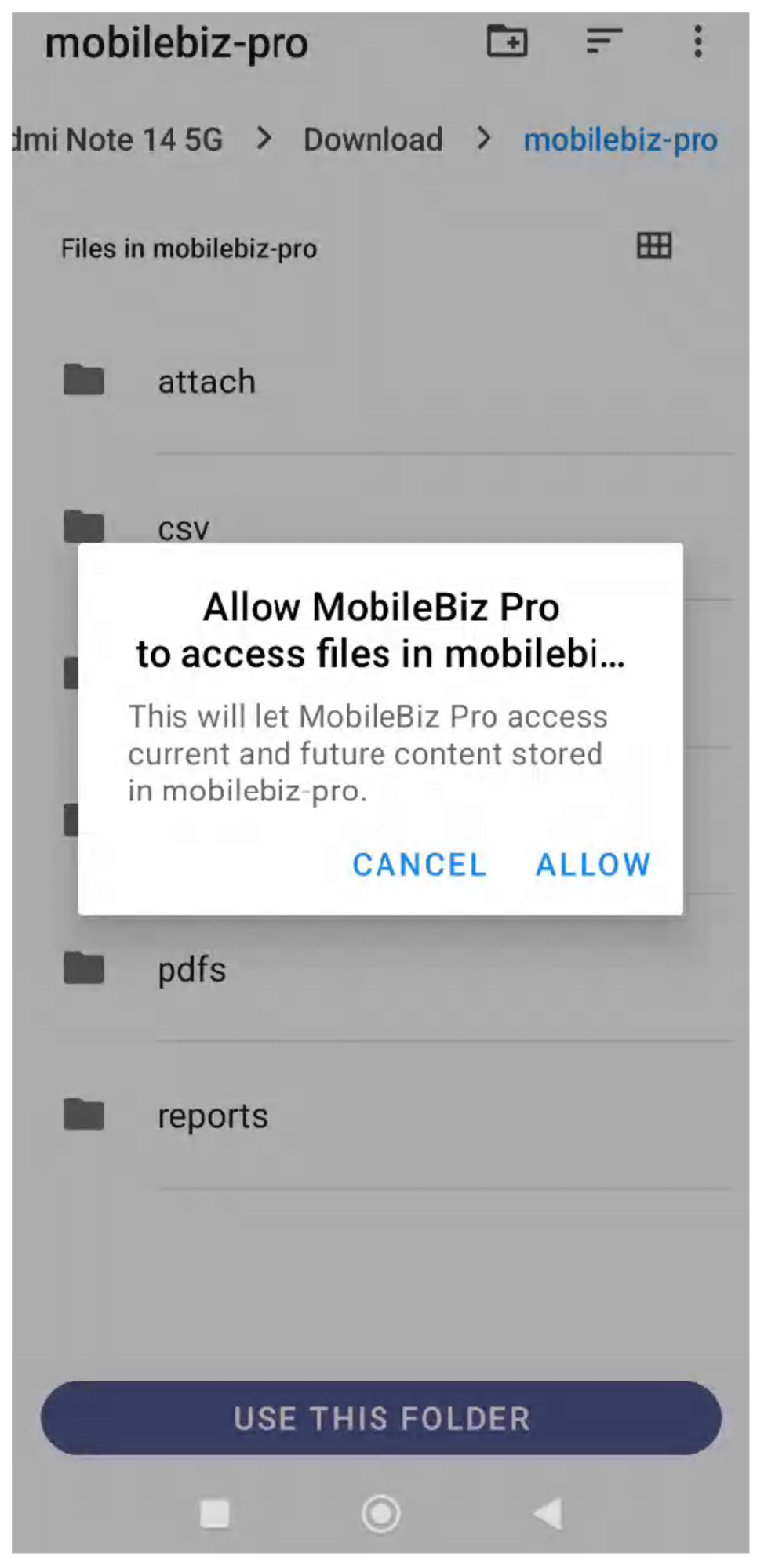
Your device's folder browser opens. Navigate to where you want MobileBiz Pro to save files. For example, you could create a folder called mobilebiz-pro inside your Download folder.
Tap USE THIS FOLDER when you've found the right location.
5. Allow access
Android will ask you to confirm: "Allow MobileBiz Pro to access files in [folder name]." Tap ALLOW to grant permission.
6. Done — your storage folder is configured
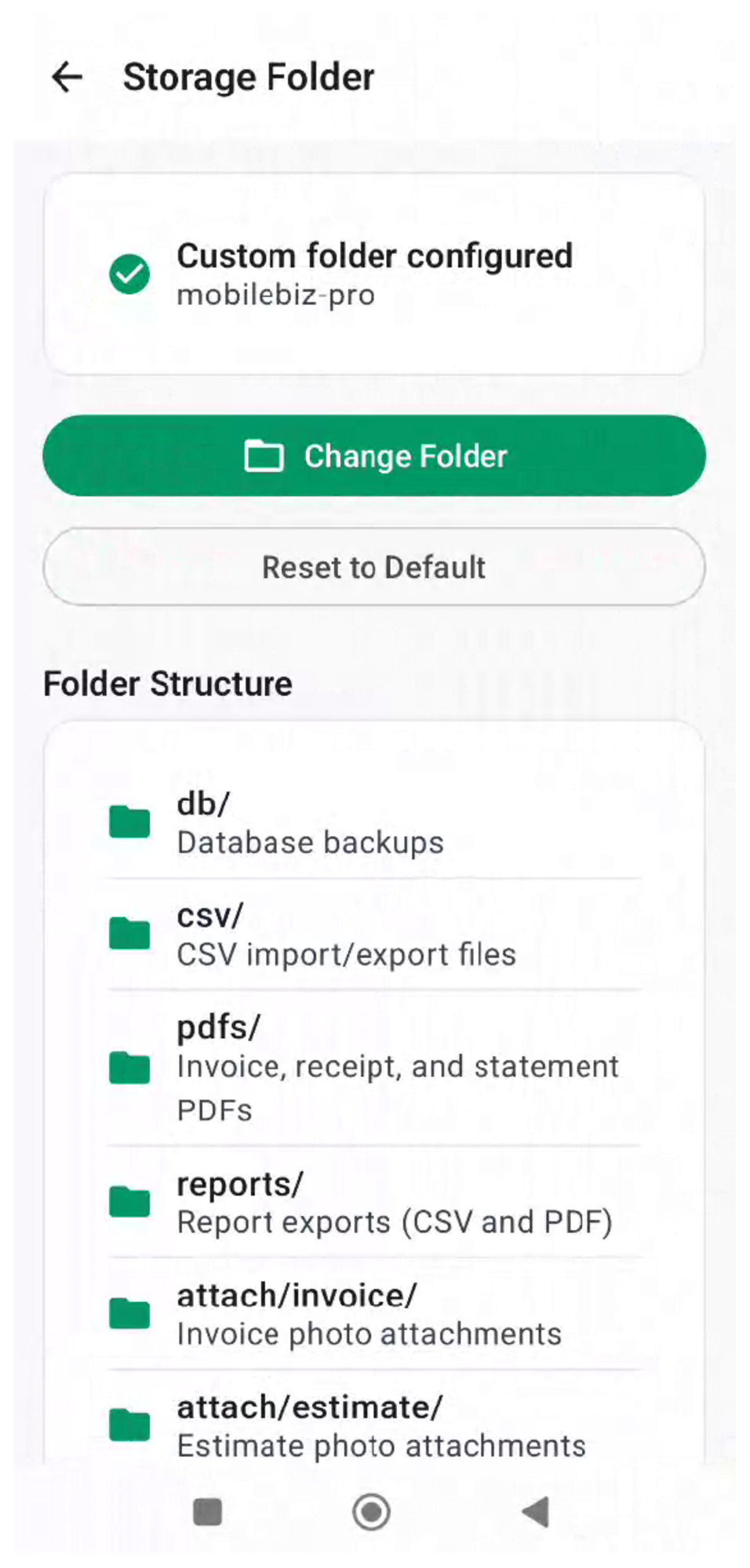
The Storage Folder screen now shows a green checkmark with "Custom folder configured" and the name of your chosen folder. You'll also see the full folder structure that MobileBiz Pro uses to organize your files.
7. Copy existing files (if any)
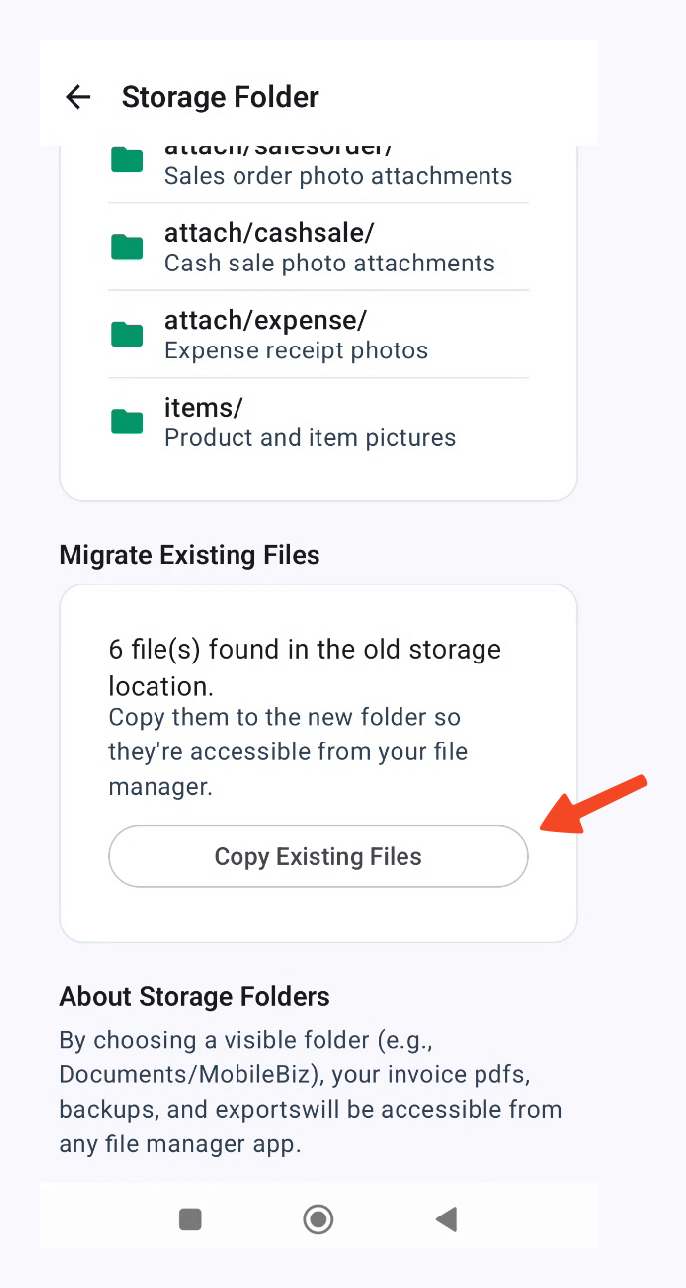
If you had files saved in the old hidden location, a Migrate Existing Files section appears below the folder structure. It tells you how many files were found in the old storage location. Tap Copy Existing Files to move them to your new visible folder so they're accessible from your file manager.
Folder Structure
Once configured, MobileBiz Pro organizes your files into these subfolders automatically:
| Folder | Contents |
|---|---|
db/ | Database backups |
csv/ | CSV import and export files |
pdfs/ | Invoice, receipt, and statement PDFs |
reports/ | Report exports (CSV and PDF) |
attach/invoice/ | Invoice photo attachments |
attach/estimate/ | Estimate photo attachments |
attach/salesorder/ | Sales order photo attachments |
attach/cashsale/ | Cash sale photo attachments |
attach/expense/ | Expense receipt photos |
items/ | Product and item pictures |
Verify Your Files
To confirm everything is working, export a file (e.g., CSV export your items) and then open a file manager app on your device. Navigate to the folder you configured — for example, Download > mobilebiz-pro > csv — and you should see your exported file.
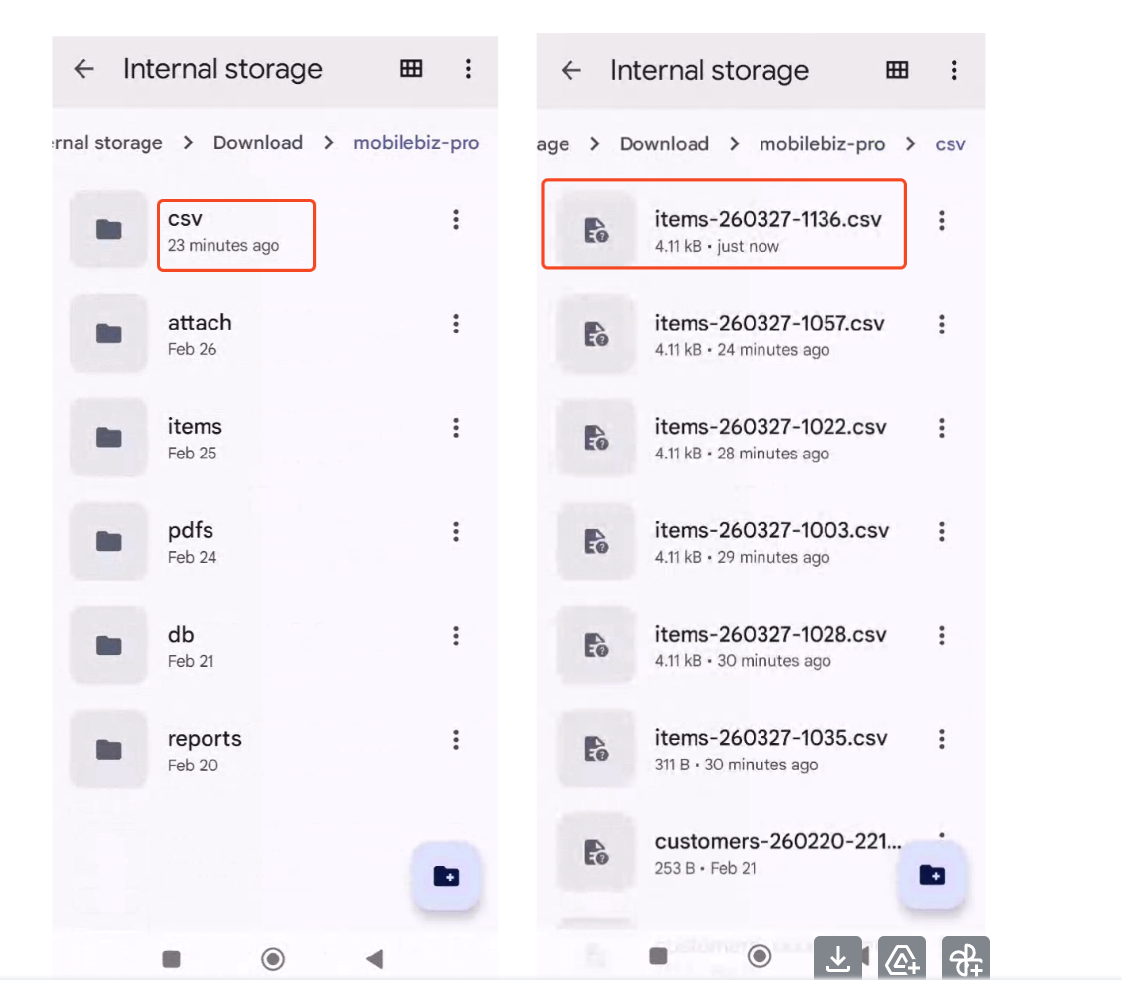
We recommend Files by Google as a file manager if you don't already have one.
Good to Know
-
The other settings on the Storage folders screen (Application folder, Import folder, Export folder, Backup folder) are informational — they show the subfolder names in use. You don't need to change them.
-
Saving to an SD card: If your phone has a physical SD card and you want files saved there, tap Storage folder and browse to a folder on the SD card.
-
Accessing files from a computer: Connect your phone via USB and browse to the storage folder. On Mac, you may need Android File Transfer. You can also share files directly from your file manager app via email or Google Drive.
-
To change or reset the folder: Go back to the Storage Folder screen. Tap Change Folder to pick a different location, or Reset to Default to go back to the hidden app storage.
-
Dropbox and Google Drive backups use their own separate storage and are not affected by this setting. See How to Restore a Backup for details.
Still stuck? Contact Support for help.