Getting a new phone? You can bring your entire MobileBiz Pro database with you in just a few minutes using Dropbox. This method works even if the two phones are never in the same room.
What You'll Need
Before you start: A Dropbox account connected to MobileBiz Pro on your old phone. If you haven't set up Dropbox yet, go to Settings > Data & backup > Backup & restore > Dropbox and connect your account first. MobileBiz Pro installed on your new phone.
Steps
On Your Old Phone
-
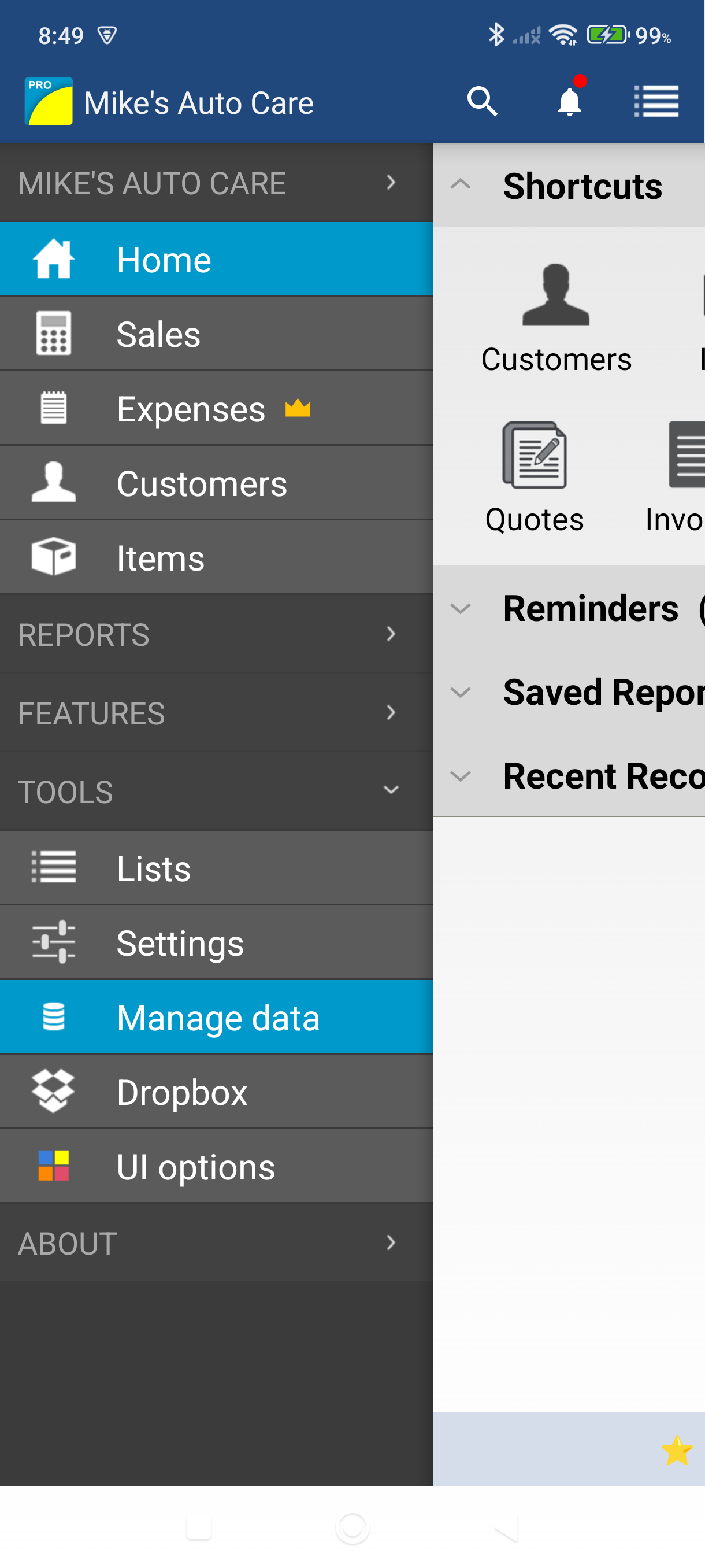
Open the side menu and tap Settings, then tap Data & backup.
-
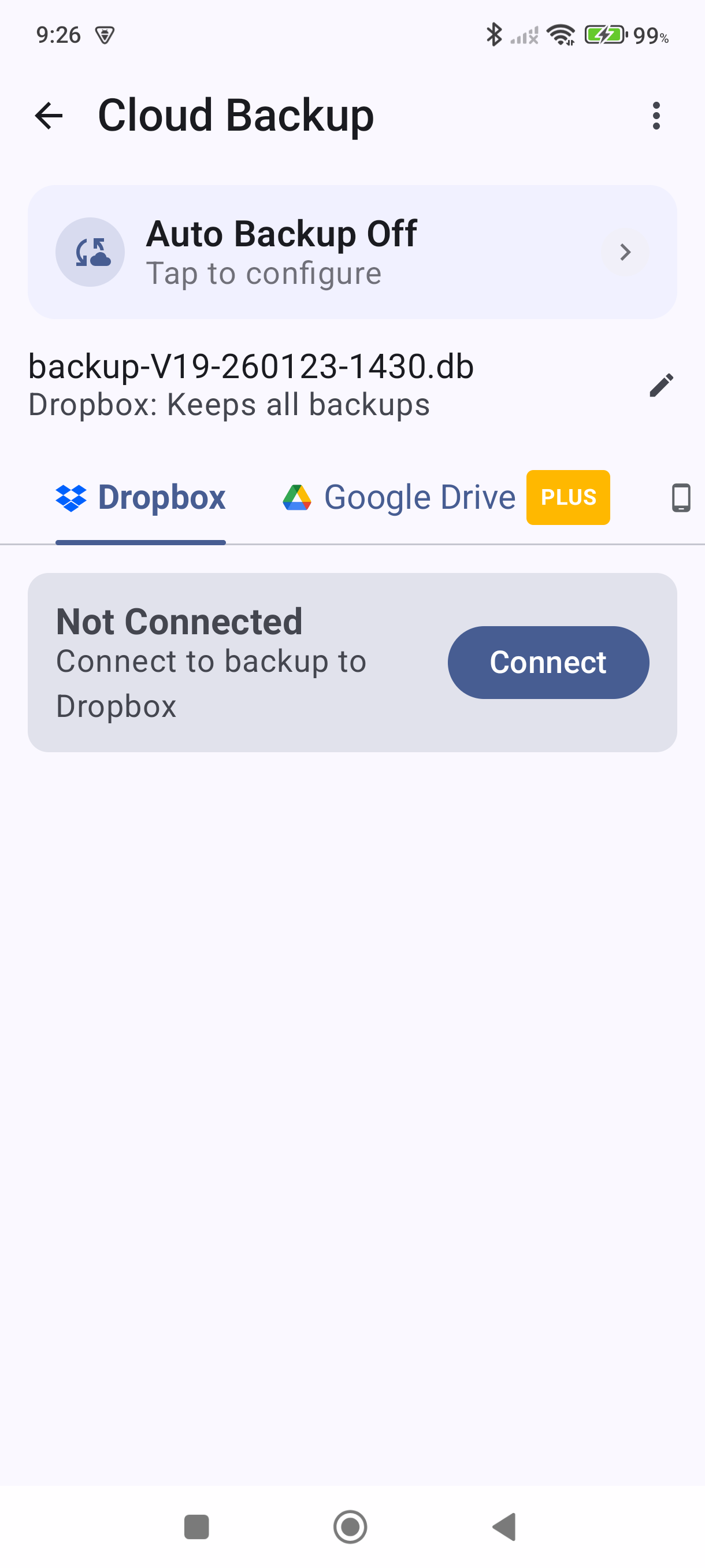
Tap Backup & restore, then select the Dropbox tab.
-
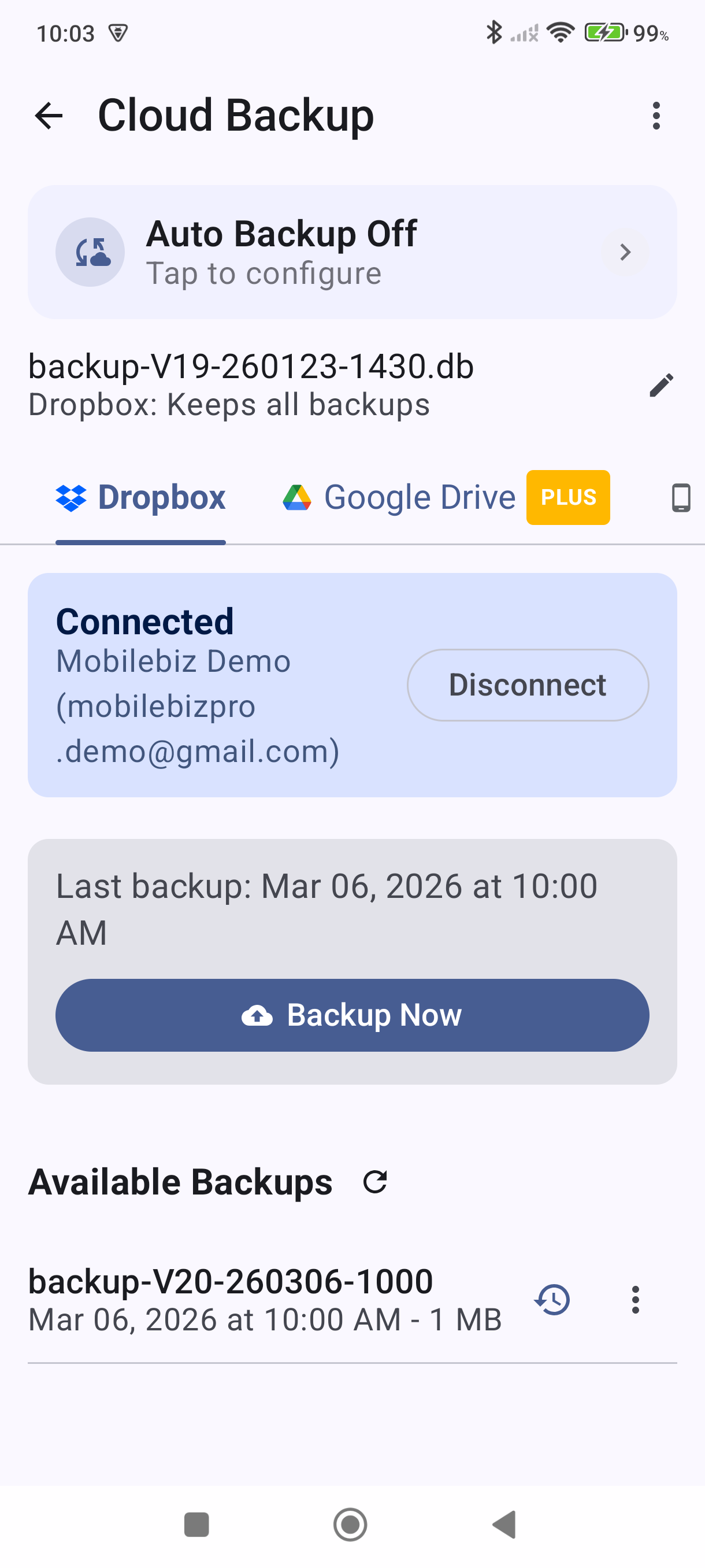
Tap the backup button to save your database to Dropbox now. Wait for the confirmation that the backup is complete.
On Your New Phone
-
Open MobileBiz Pro. The app starts with an empty database — that's expected.
-
Open the side menu and tap Settings, then tap Data & backup.
-
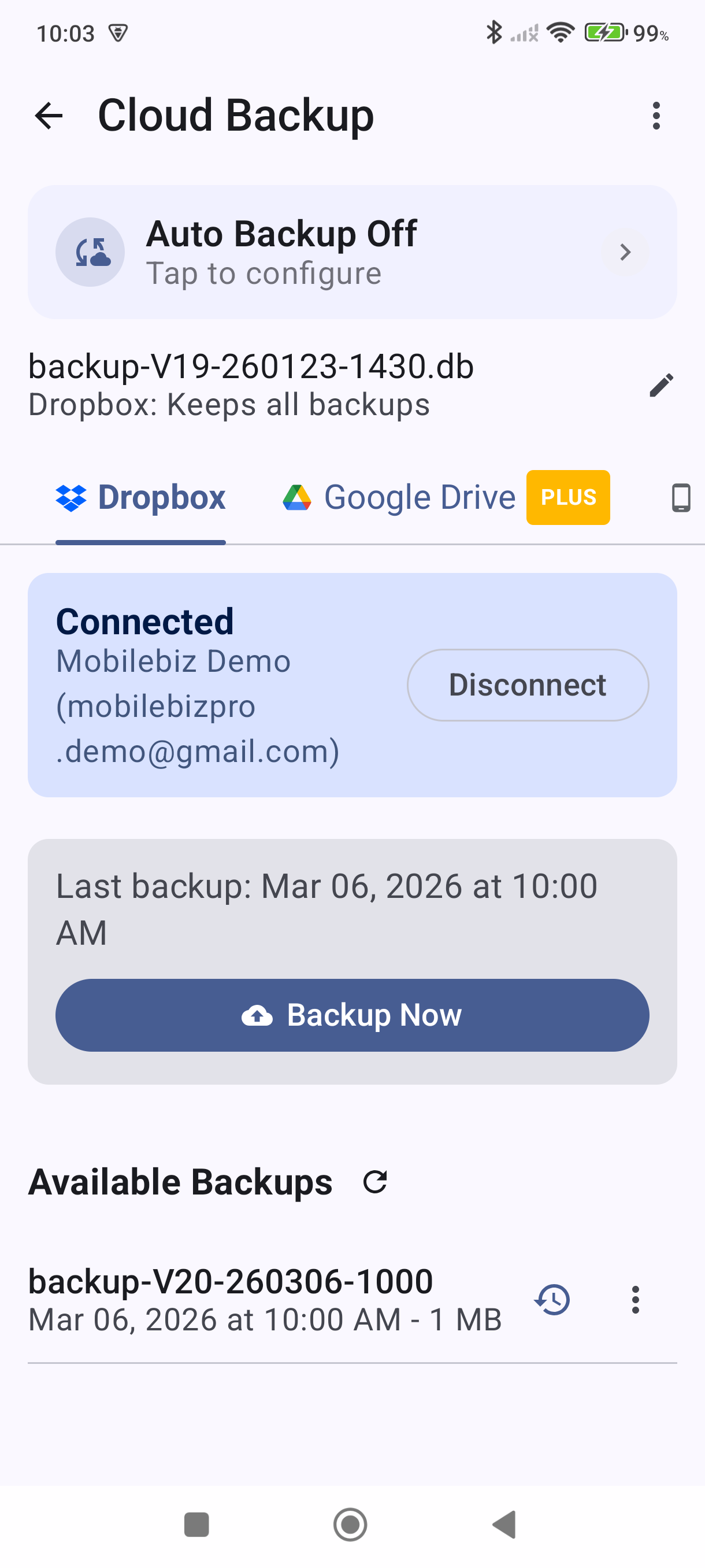
Tap Backup & restore, then select the Dropbox tab.
-
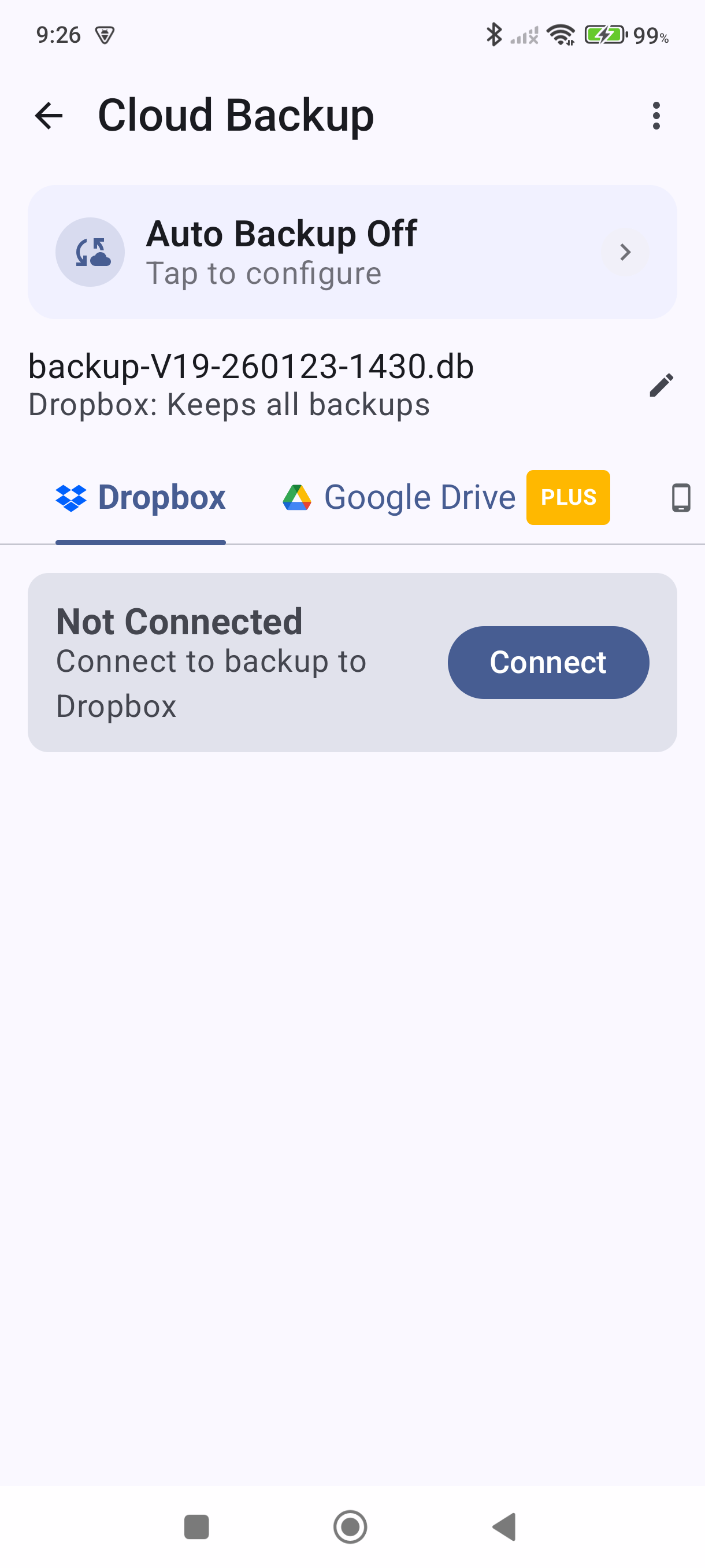
Connect the same Dropbox account you used on your old phone.
-
Tap the backup file from your old phone — it appears in the list with the date and time it was created.
-
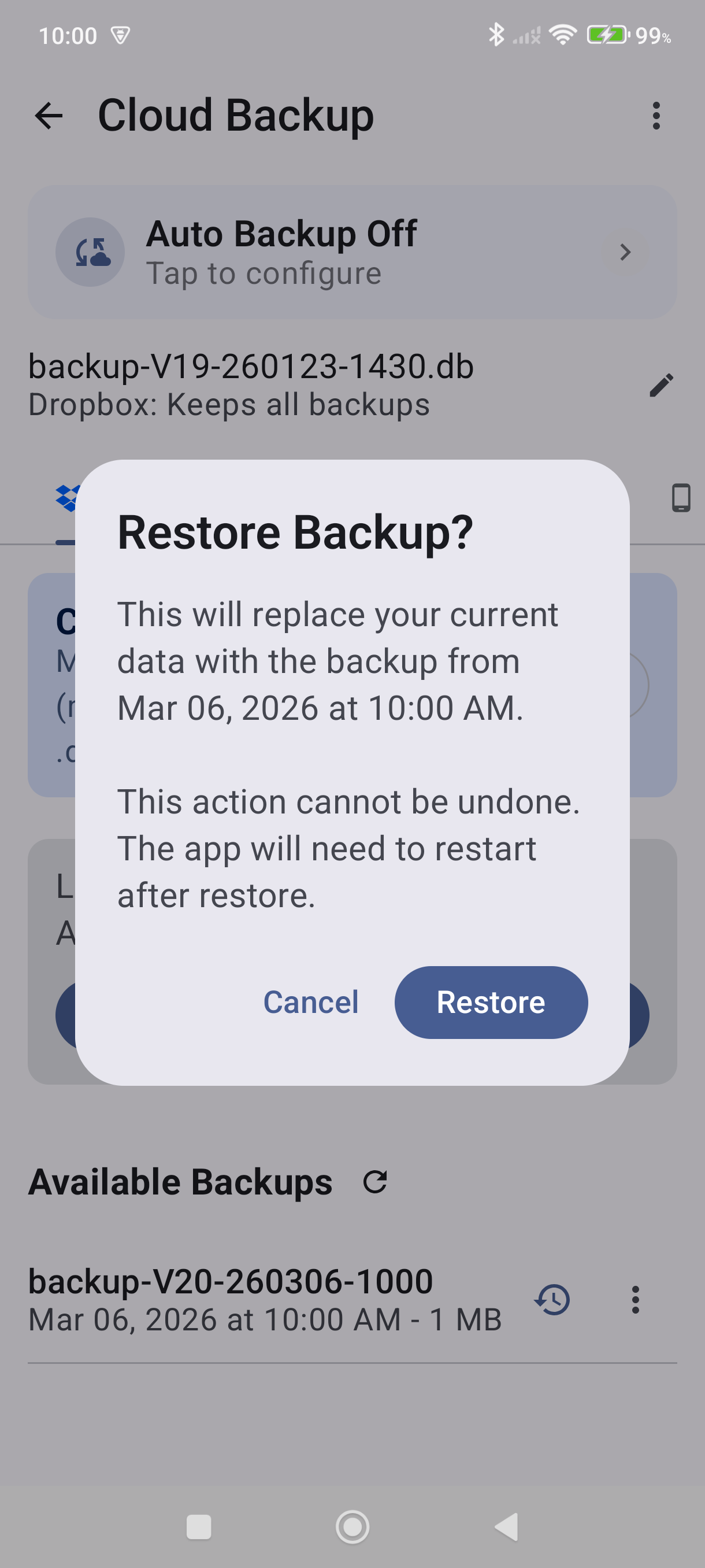
Confirm the restore. The app loads your backup and restarts with all your data in place.
Good to Know
- Everything transfers: invoices, quotes, customers, items, settings, and print templates.
- Don't have Dropbox? You can also use the Device tab to save a backup file to your old phone's storage and copy it manually to your new phone.
- If you use Google Drive, the process is identical — just select the Google Drive tab instead of Dropbox on both phones.
- Photos stored in MobileBiz Cloud are tied to your account and will be available on the new phone once you sign in — they don't need to be transferred separately.
- After the restore, open a few invoices and check your customer list to confirm everything transferred correctly.
Still stuck? Contact Support for help.