Automatic backups protect your invoices, customers, and items if your phone is ever lost or replaced. You can back up automatically to Dropbox (free for all users) or Google Drive (requires a Plus subscription).
What You'll Need
Before you start: Connect at least one cloud account before enabling auto-backup. For Dropbox (free for all users), see How to Back Up to Dropbox. For Google Drive, see How to Back Up to Google Drive.
Steps
Step 1 — Open Backup & Restore
-
Open the side menu and tap Manage Data, then tap Backup & Restore to open the Cloud Backup screen.
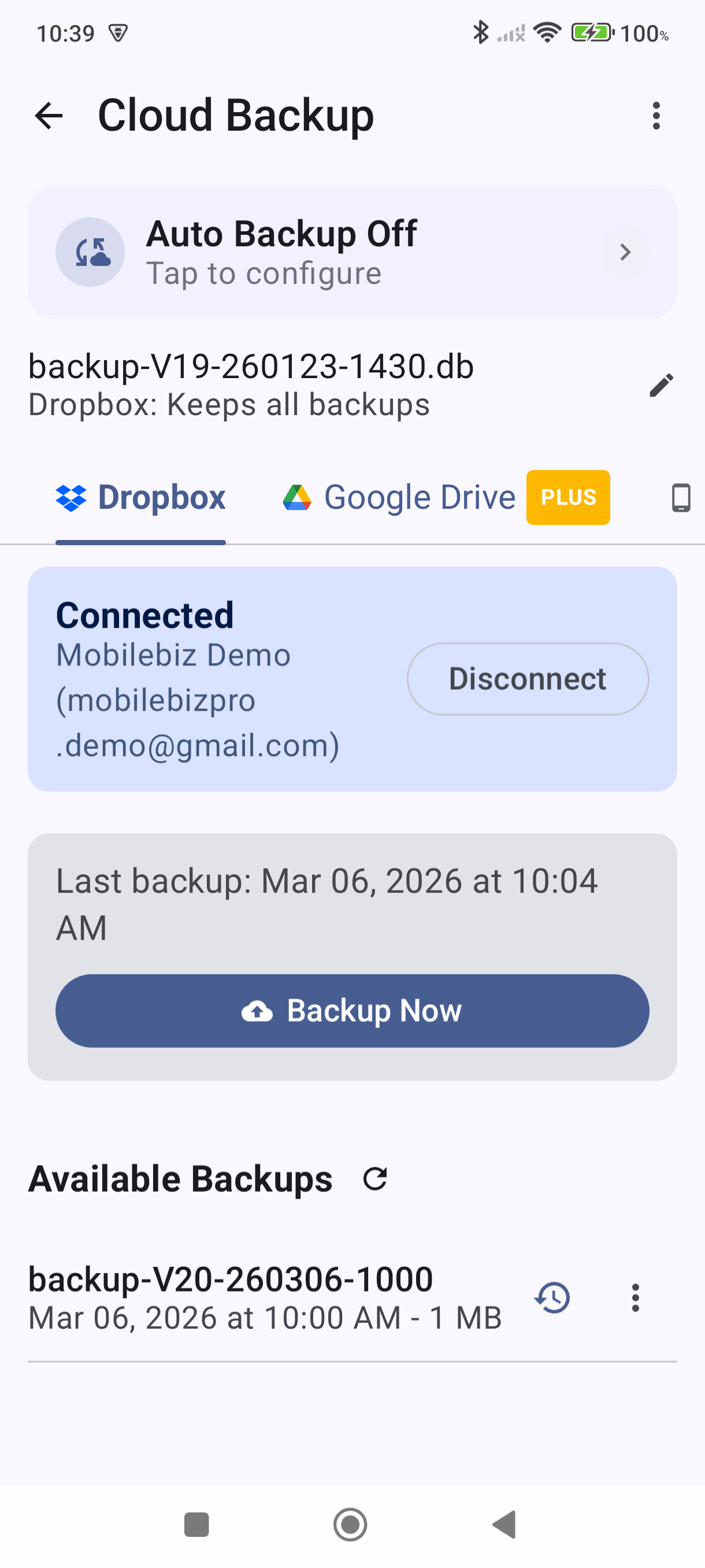
If you haven't connected Dropbox yet, tap the Dropbox tab and tap Connect to link your account before continuing. See How to Back Up to Dropbox for full connection steps.
Step 2 — Configure auto-backup
-
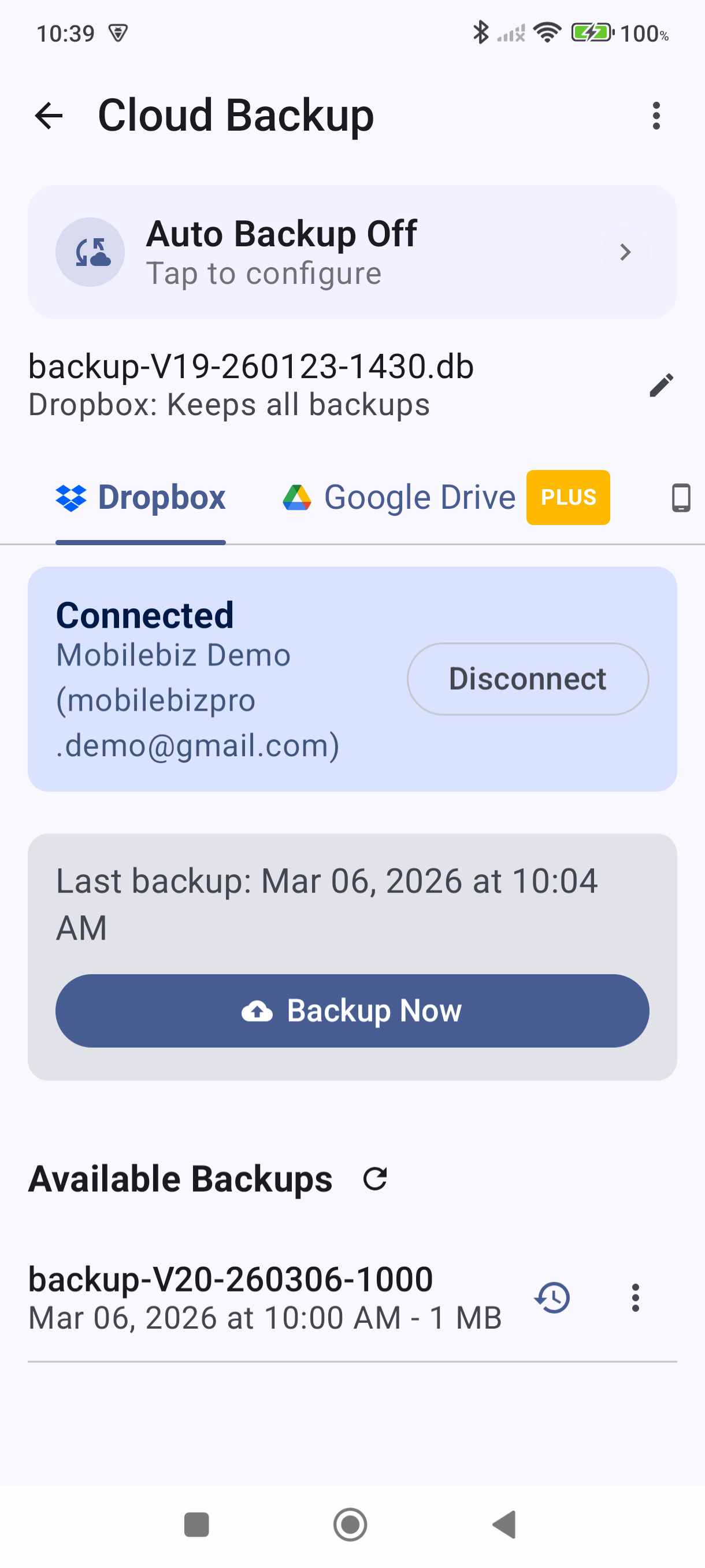
Tap the Auto Backup status bar near the top of the screen (it shows "Auto Backup Off — Tap to configure"). The Auto Backup Settings sheet opens.
-
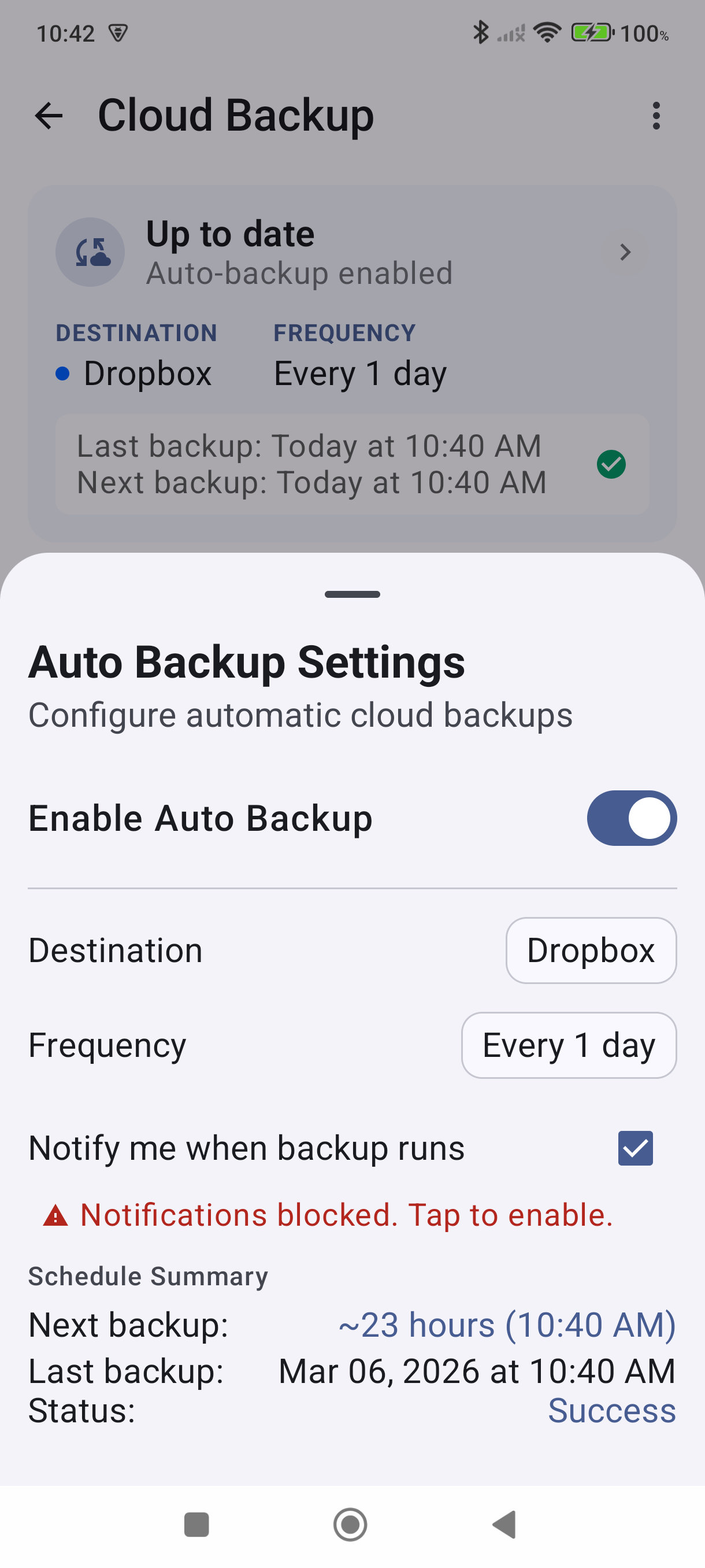
Toggle "Enable Auto Backup" on. Three options appear below the toggle:
- Destination — tap to choose Dropbox or Google Drive.
- Frequency — choose how often backups run. Options range from every 15 minutes to every 7 days. Daily is a good default for most users.
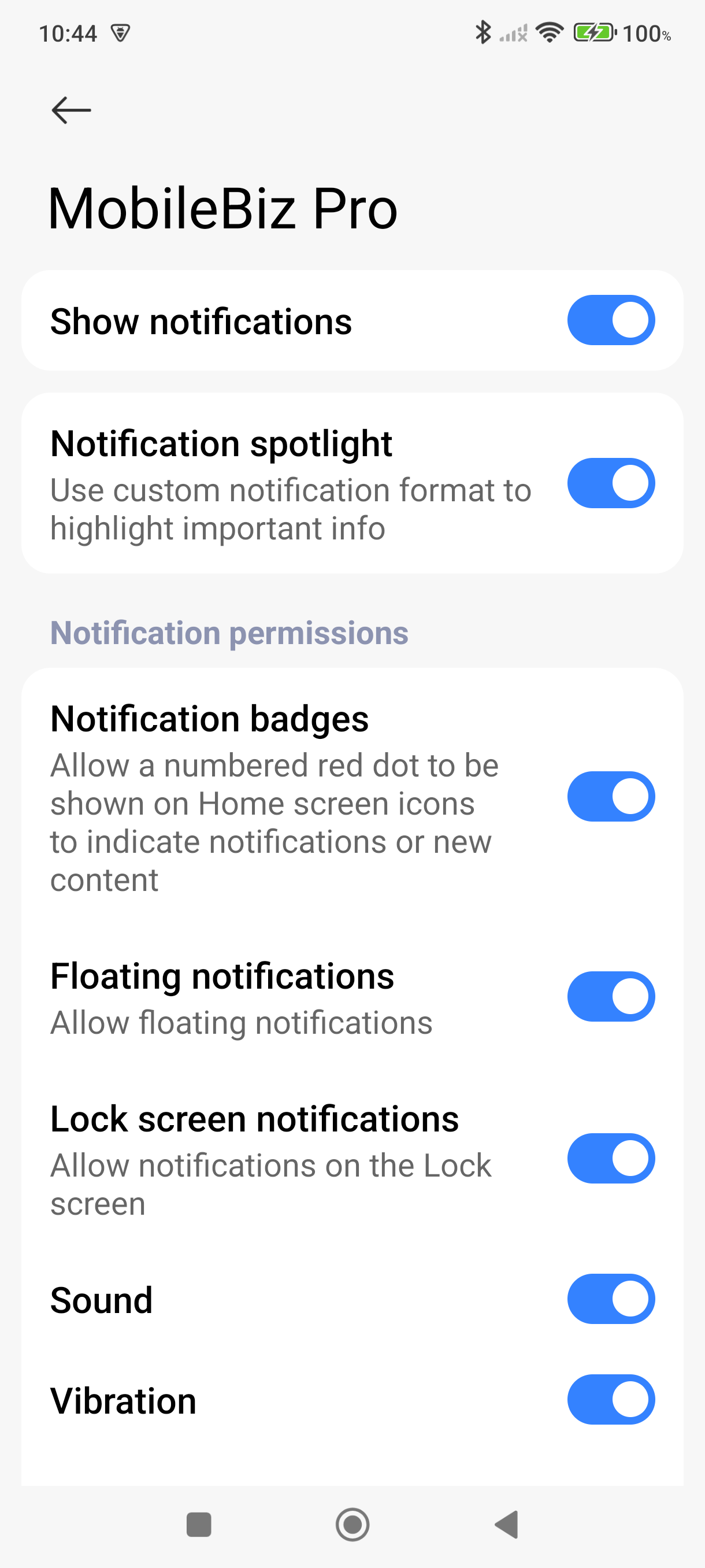
- Notify me when backup runs — check this to receive a notification each time a backup completes. If you see a "Notifications blocked" warning, tap it to open Android's notification settings and toggle Show notifications on for MobileBiz Pro.
-
Dismiss the sheet by swiping it down or tapping outside it. The status bar updates to show your destination and frequency. Auto-backup is now active.
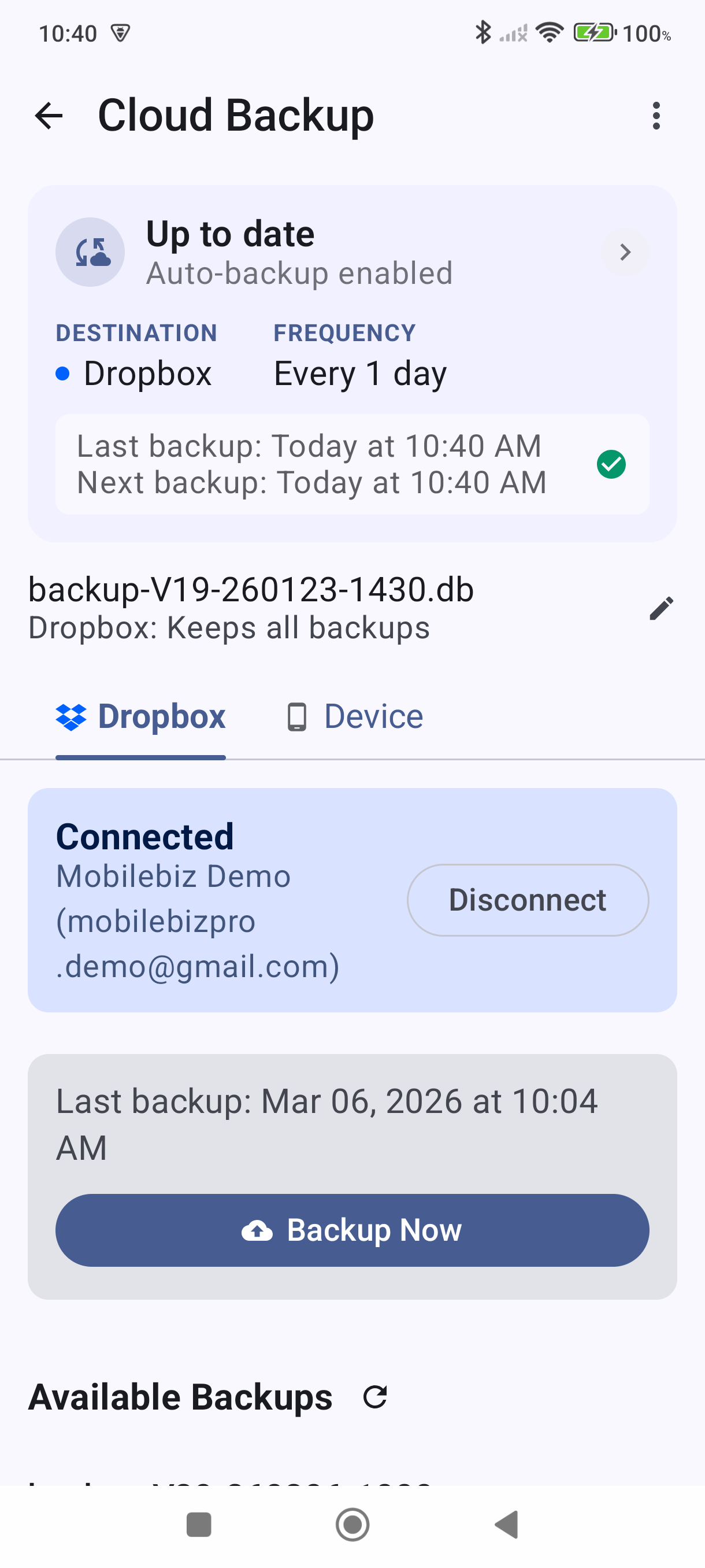
Backup Options
Below the Auto Backup status bar, you'll always see a Backup Options row showing an example filename and a short description of how many backups are kept. Tap it to open the Backup Options dialog.
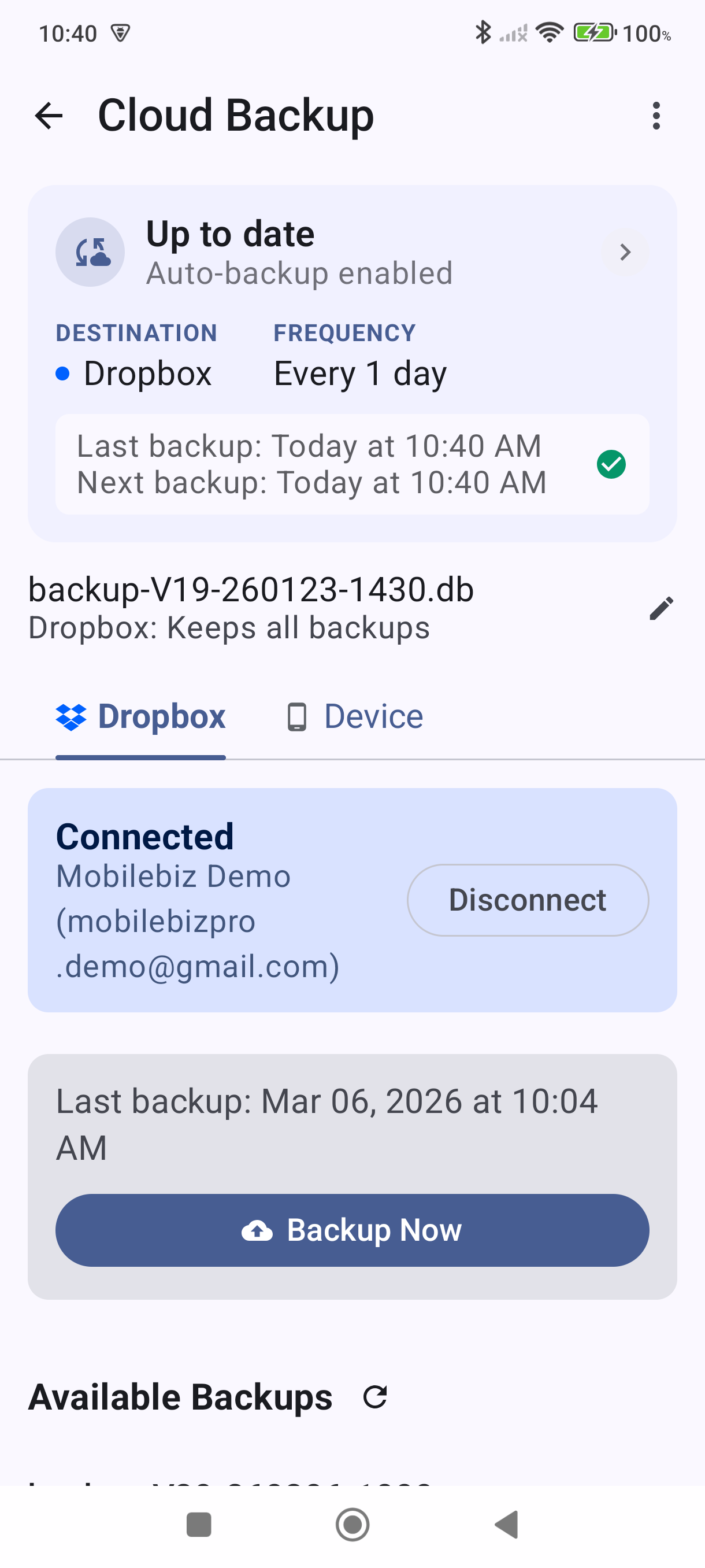
The dialog has two settings:
Backup name prefix
An optional word or code added to every backup filename so you can tell your backups apart — useful if multiple people back up to the same Dropbox folder. For example, a prefix of john produces a filename like backup-V19-john-260123.db. Leave it blank to use the default filename format.
Backup retention
Controls whether each new backup replaces the previous one or adds to it. The options are:
| Option | What it does |
|---|---|
| Keep all | Adds a full timestamp to every filename — each backup is saved as a new file. Files accumulate over time, so this uses the most cloud storage space. This is the default. |
| Keep only 1 | No timestamp — each backup overwrites the last. Only one file ever exists in your cloud account, so storage use stays minimal. Plus subscription required. |
| Keep daily | One backup per day — new backups on the same day overwrite the earlier one. You'll end up with roughly one file per day of the month. Plus subscription required. |
| Keep weekly | One backup per week — new backups in the same week overwrite the earlier one. You'll end up with roughly one file per week of the month. Plus subscription required. |
The retention setting is saved separately for Dropbox and Google Drive. A live filename preview updates as you change the settings in the dialog.
Good to Know
- Dropbox auto-backup is free for all users — no Plus subscription required.
- Google Drive auto-backup requires Plus. Free users can run one free manual Google Drive backup, but automatic scheduling requires an active Plus subscription. See How to Back Up to Google Drive.
- When auto-backup is enabled, the Cloud Backup screen hides the tab for the provider you are not using — this is expected.
- Your backup files are saved to a MobileBiz Pro folder in whichever cloud service you chose. You can browse them any time in the Dropbox or Google Drive app.
- To restore from a backup, go to Manage Data > Backup & Restore, select the appropriate tab, and choose a backup file from the list.
Still stuck? Contact Support for help.