Doing service work? Add photos to an invoice or estimate — before/after shots, the finished job, proof of delivery — and put them right on the PDF your customer receives. Nothing says "here's what you paid for" like the evidence attached to the invoice.
What You'll Need
Before you start: Invoice photos are a Plus feature with a free preview. While the preview is running, a banner at the top of the Photos tab reads Free preview — N days remaining, and a Get Plus link appears on it in the final days. Photos appear on the PDF and email your customer receives once you have an active Plus subscription.
Steps
-
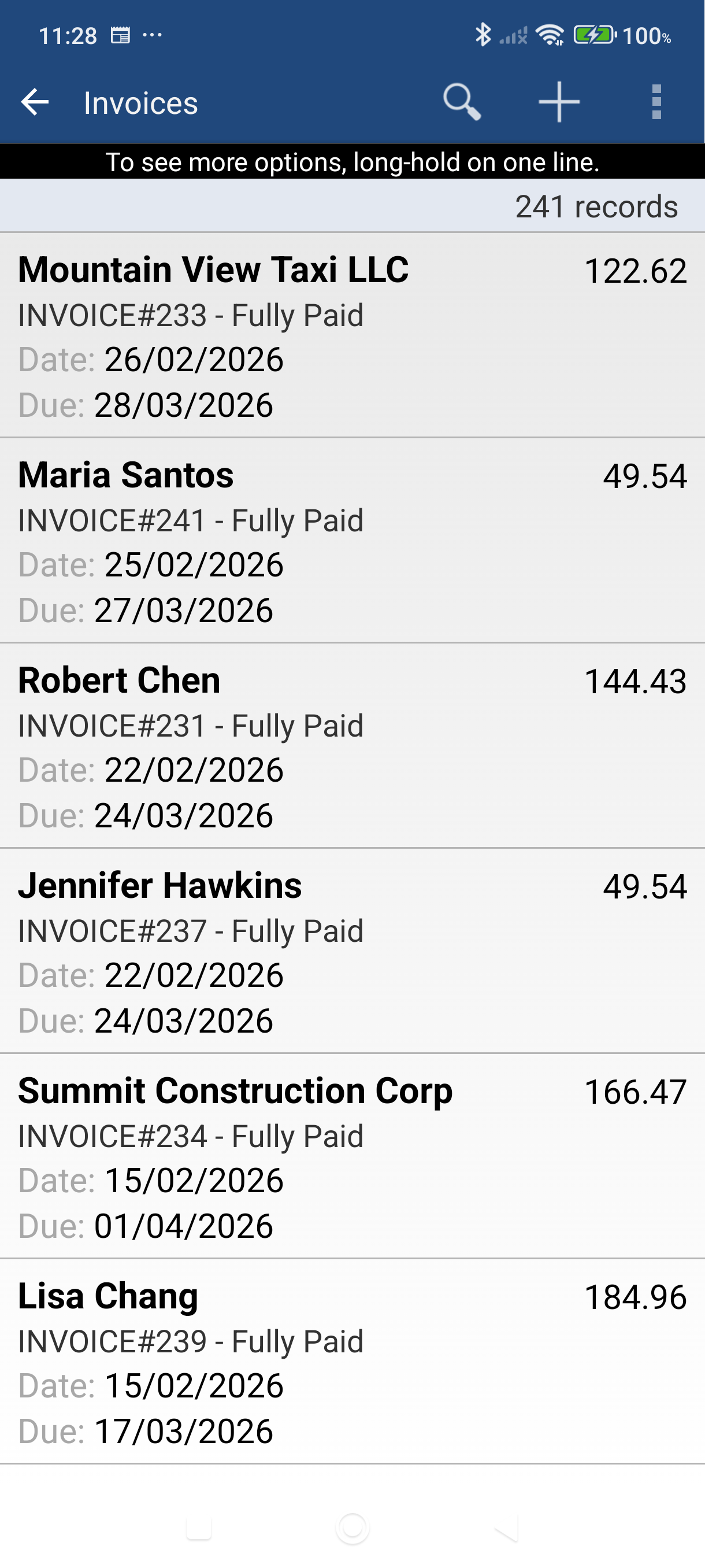
Open the invoice from the Invoices list — tap the Invoices tile on the Dashboard, then tap the invoice. Estimates work the same way from the Quotes tile.
-
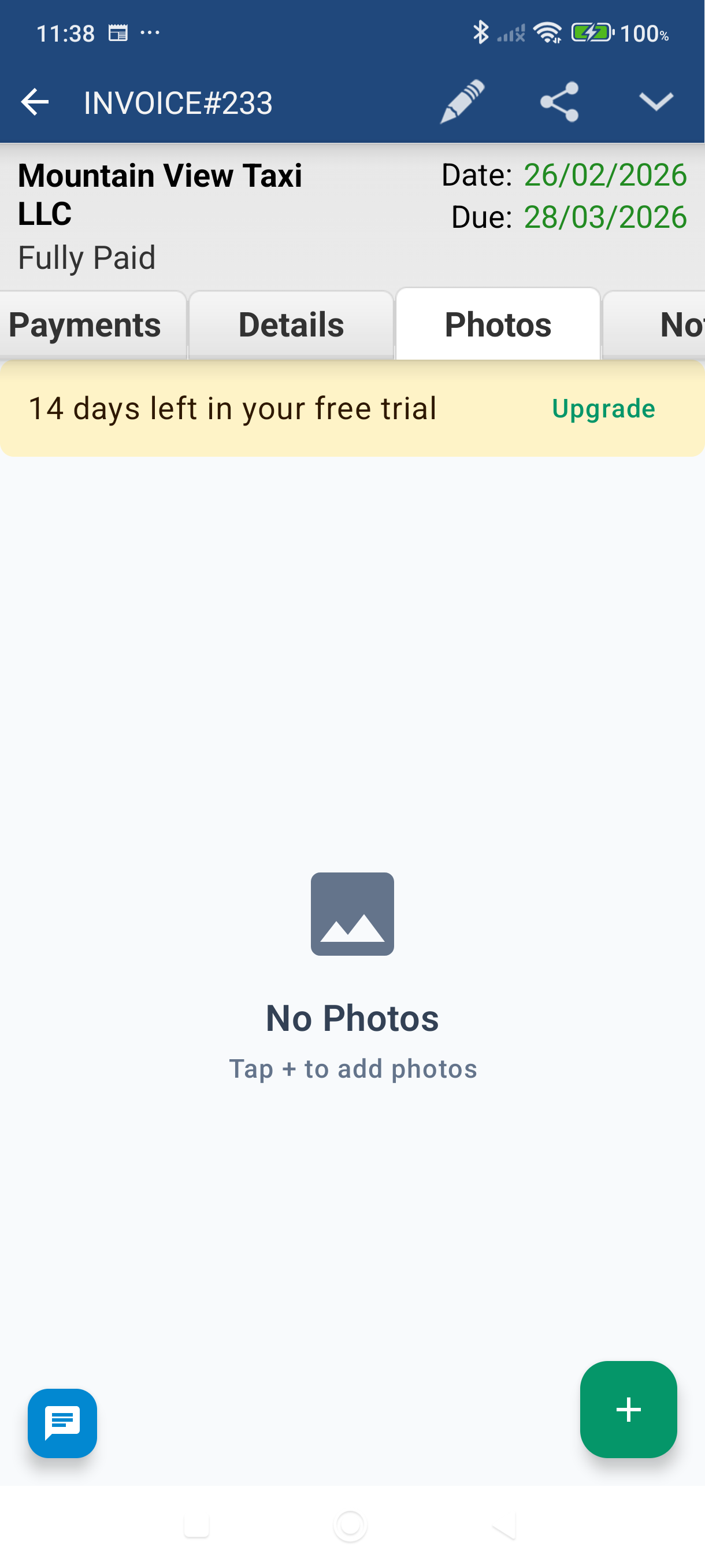
Tap the Photos tab on the transaction. It opens empty, with a + button in the bottom-right.
-
Tap + to open the Add Photo sheet, then choose your source:
- Take Photo — snap the job on the spot
- Choose from Gallery — pick an existing shot from your device
- Paste from Clipboard — available only when you have an image copied
If your free preview hasn't started yet, the Try Invoice Photos Free dialog appears first — tap Try free for 14 days to start it.
-
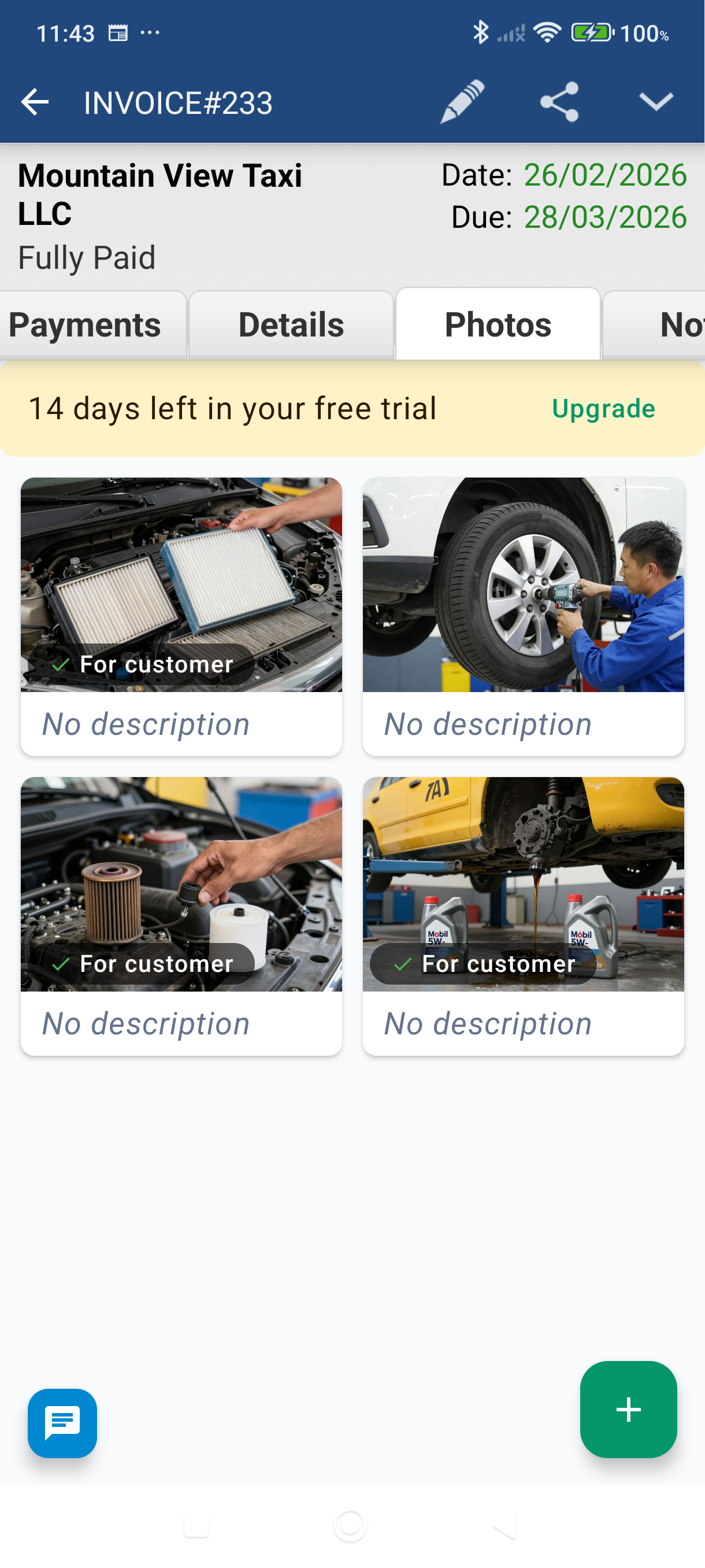
Mark it for the customer. Press and hold the new thumbnail to open Edit Photo, tick Send to customer, add a short description if you like, then tap Save. Photos are not on the PDF until you tick this — each one that is carries a green check and For customer badge on its thumbnail.
-
Send the invoice. Generate or email the PDF as usual — your marked photos travel with it. A cloud badge on each thumbnail means it has finished syncing and is ready to send.
Keep It Tidy
A clean set of photos looks professional on the customer's PDF. To review or remove any shot:
- Press and hold a thumbnail to open Edit Photo — update the description or turn Send to customer on or off.
- Tap Delete in that panel (then confirm) to remove a photo. If it has synced, this also removes it from MobileBiz cloud.
- Tap a thumbnail to open it full-screen; pinch or double-tap to zoom and check the detail before you send.
Good to Know
- New photos are off the PDF by default — tick Send to customer on each one you want the customer to see.
- If you send without an active Plus subscription, the app warns "Photos Won't Be Attached" so nothing is stripped silently — tap Upgrade to include them, Send Without Photos to send the plain invoice, or Cancel to go back.
- Photos are tied to that one transaction — they don't carry over to other invoices.
- If a photo hasn't synced yet (no cloud badge), give it a moment before sending. On a weak connection you'll get a heads-up if any shot couldn't be attached — retry once you're back online.
- All photos stay visible even if your Plus subscription ends. You just won't be able to add new ones without an active subscription.
For subscription details, see MobileBiz Pro Plus — What's Included.
Still stuck? Contact Support for help.