Items are the products and services you bill for. Set them up once and they auto-fill prices, descriptions, and tax settings every time you add them to an invoice.
Steps
-
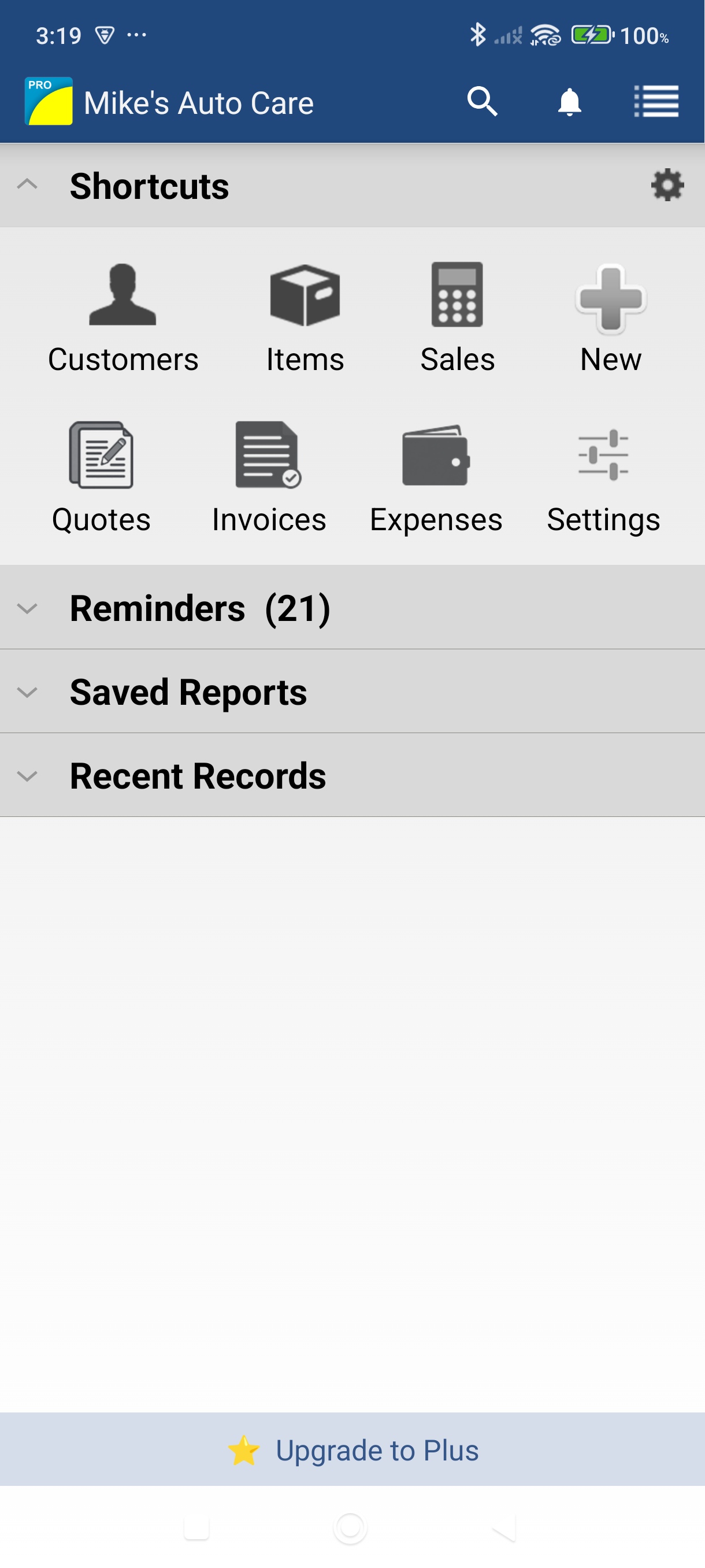
From the Dashboard, tap the Items shortcut, or swipe from the left edge and tap Items in the navigation menu.
-
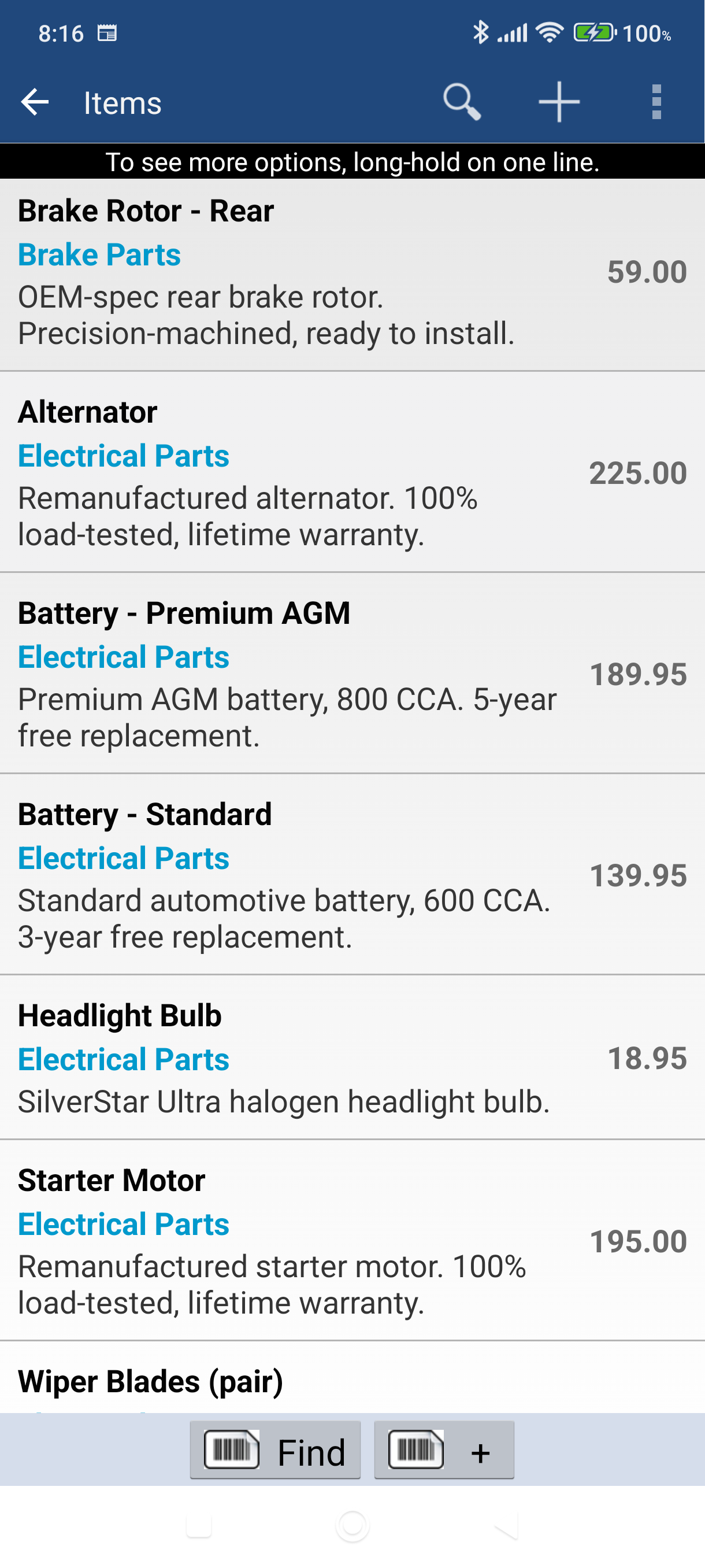
Tap the + icon in the top action bar to open the Add Item screen.
-
Enter the item name — this is the only required field. Then fill in the details that apply to your item.
Field Notes Item Name Required. This is what appears on your invoices. Sales Price The price per unit. You can override it on individual invoices. Description Auto-fills on invoices when you select this item. Type See item types below. Units A label for the unit of measure (e.g., "hour", "each", "sq ft"). Cost Your cost for this item — used in profit reports, not shown on invoices. Taxable On by default. Uncheck if this item is never taxed. 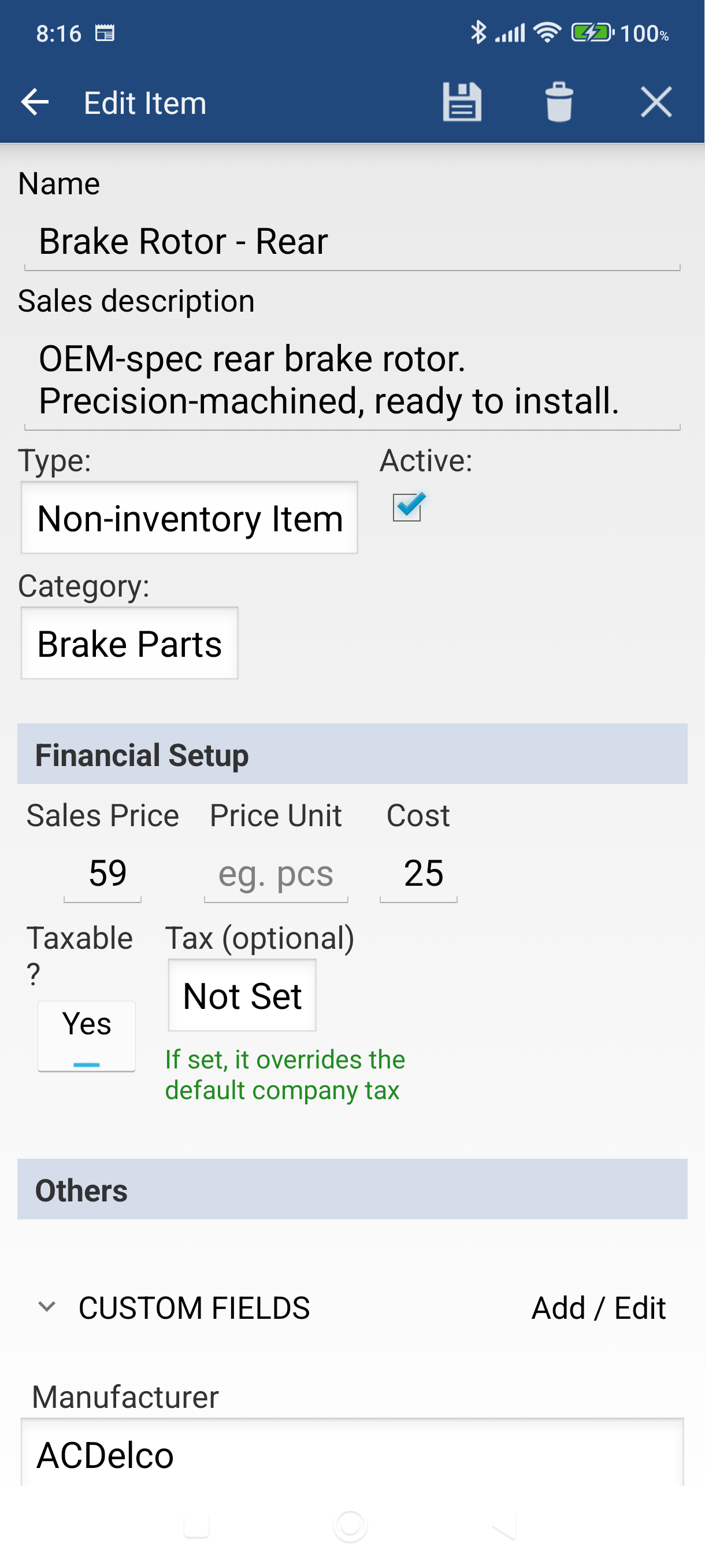
-
Choose an item type by tapping the Type button.
Type Best for Non-inventory Item Products sold without tracking stock (default). Inventory Item Products where you want to track quantities on hand. Service Item Labor, consulting hours, or any service-based work. Shipping Item Delivery and shipping charges. Description Item Text-only lines — useful for section headers or notes on invoices. 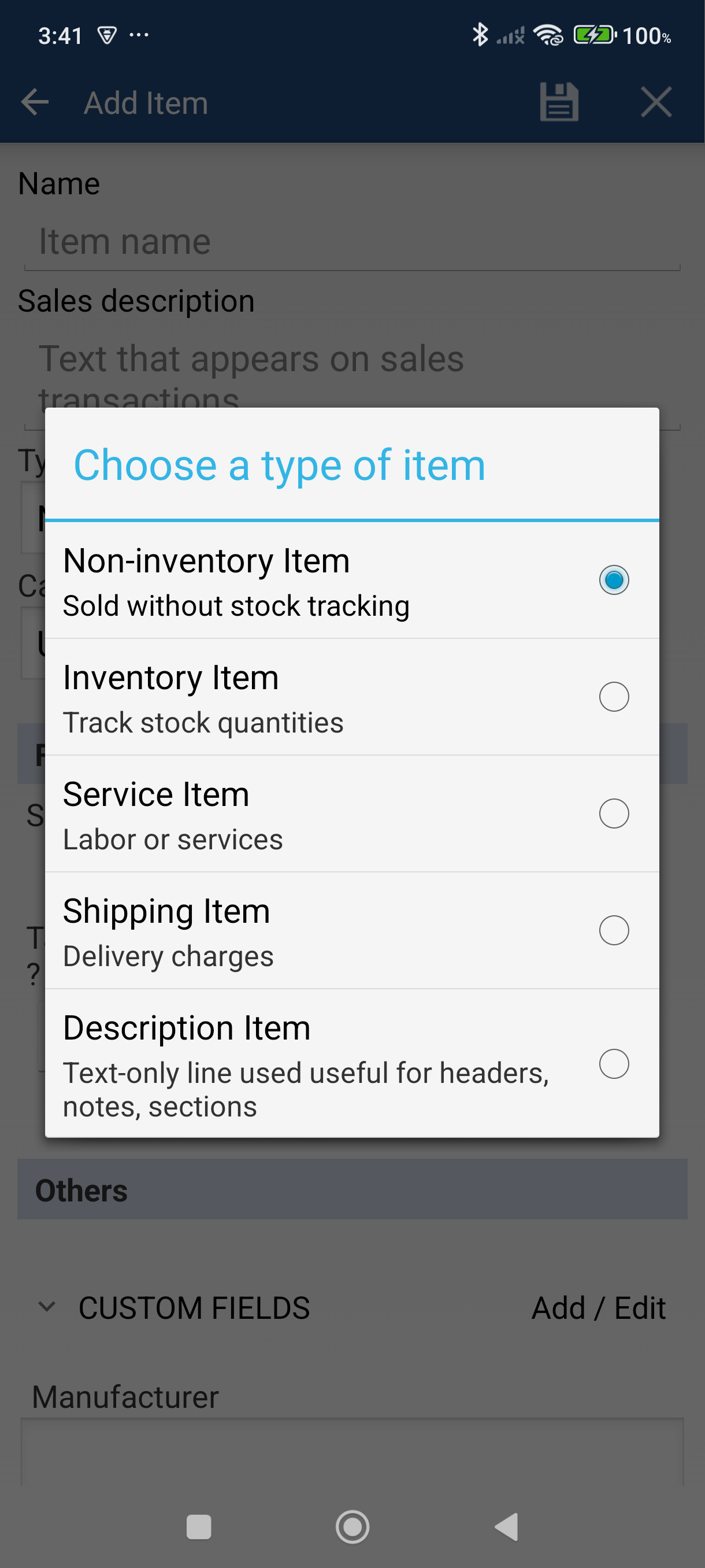
-
Tap the checkmark (Save) in the action bar. The item is now in your catalog and ready to add to invoices.
Good to Know
- If you leave Sales Price blank, the app asks you to confirm before saving. You can still save — you'll just enter the price manually each time on the invoice.
- Description Items have no price or tax fields — they're pure text lines for headers, disclaimers, or dividers on invoices.
- You can assign items to categories (tap the Category field) to keep your catalog organized as it grows.
- To duplicate a similar item, open it, tap the pencil icon, and choose Copy item.
Still stuck? Contact Support for help.